
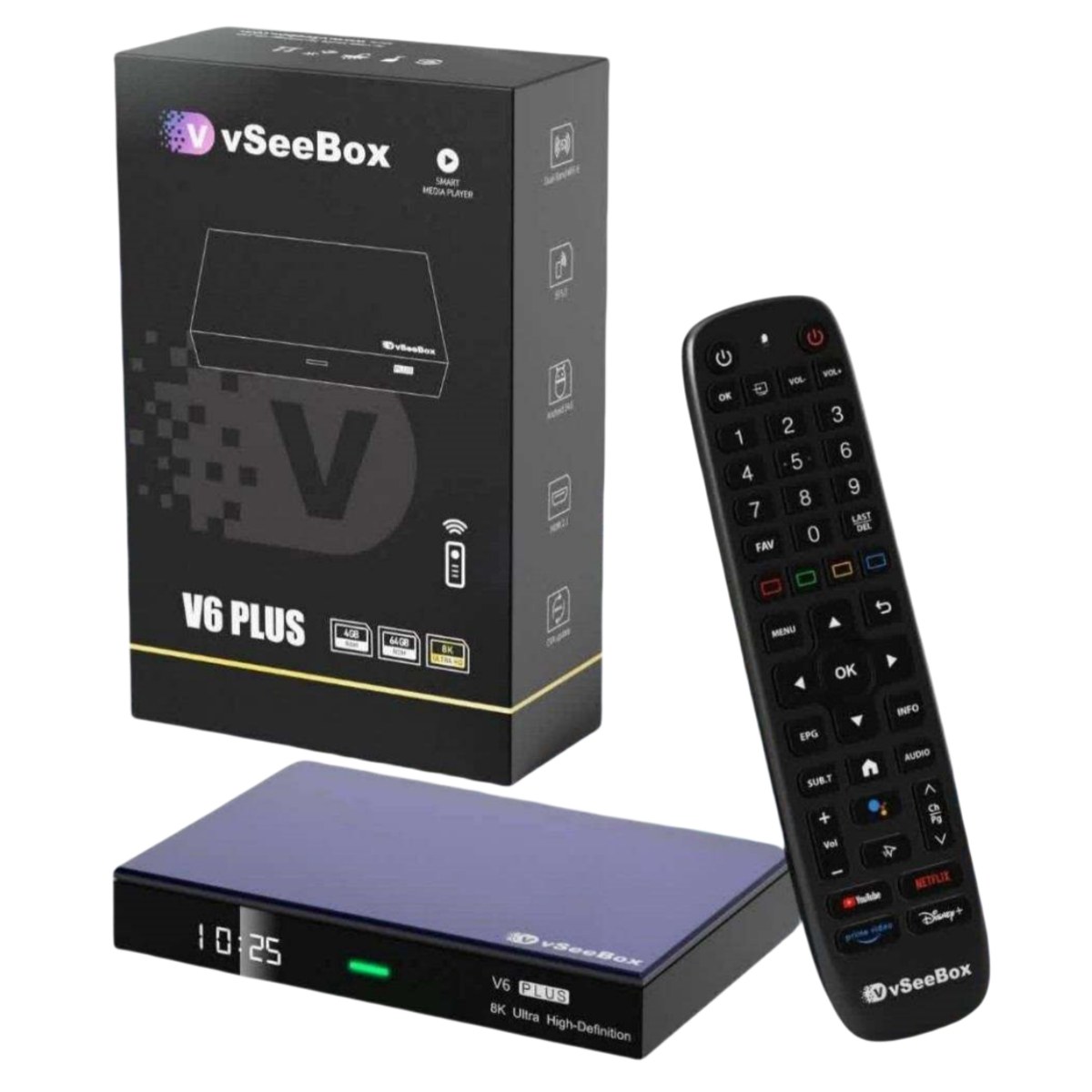
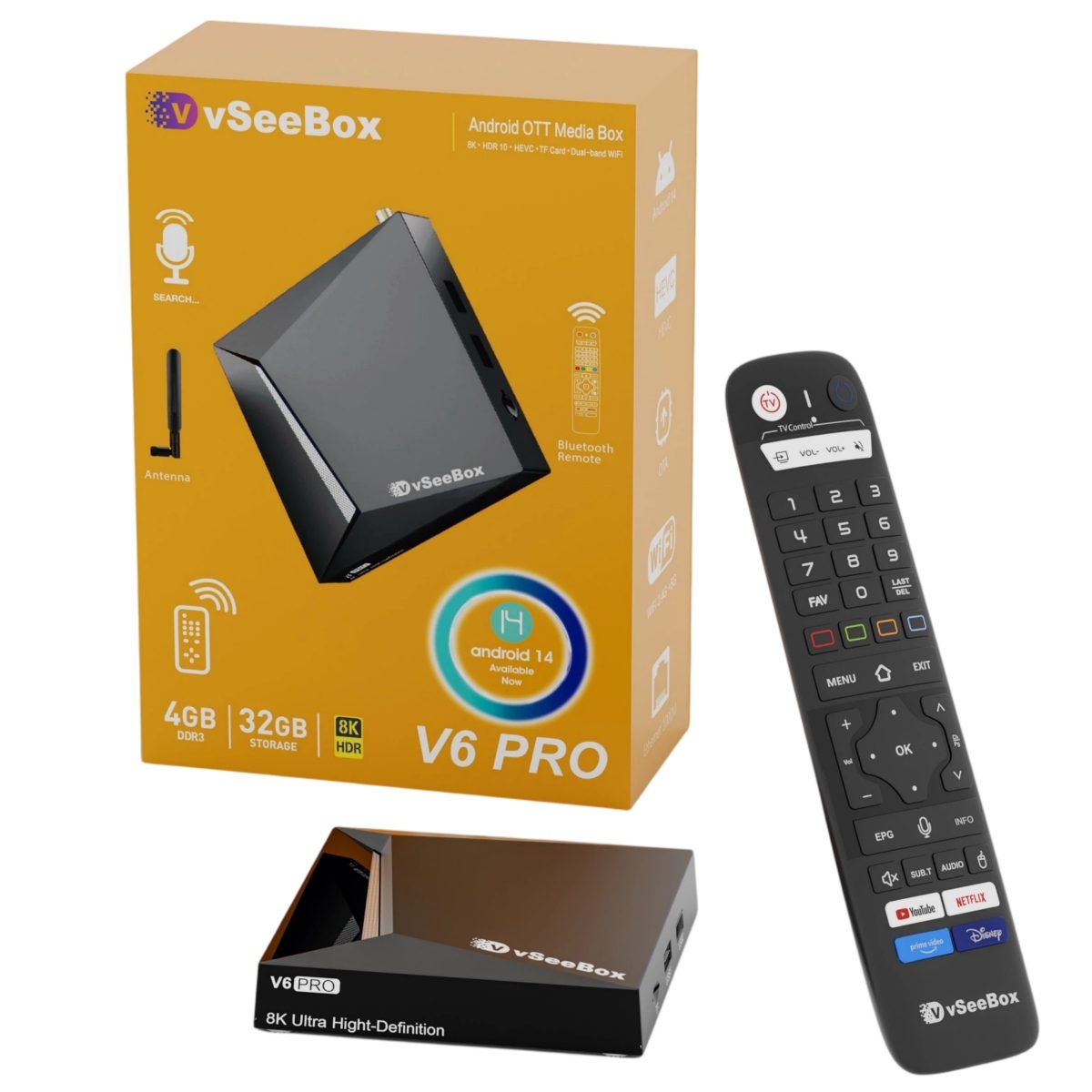
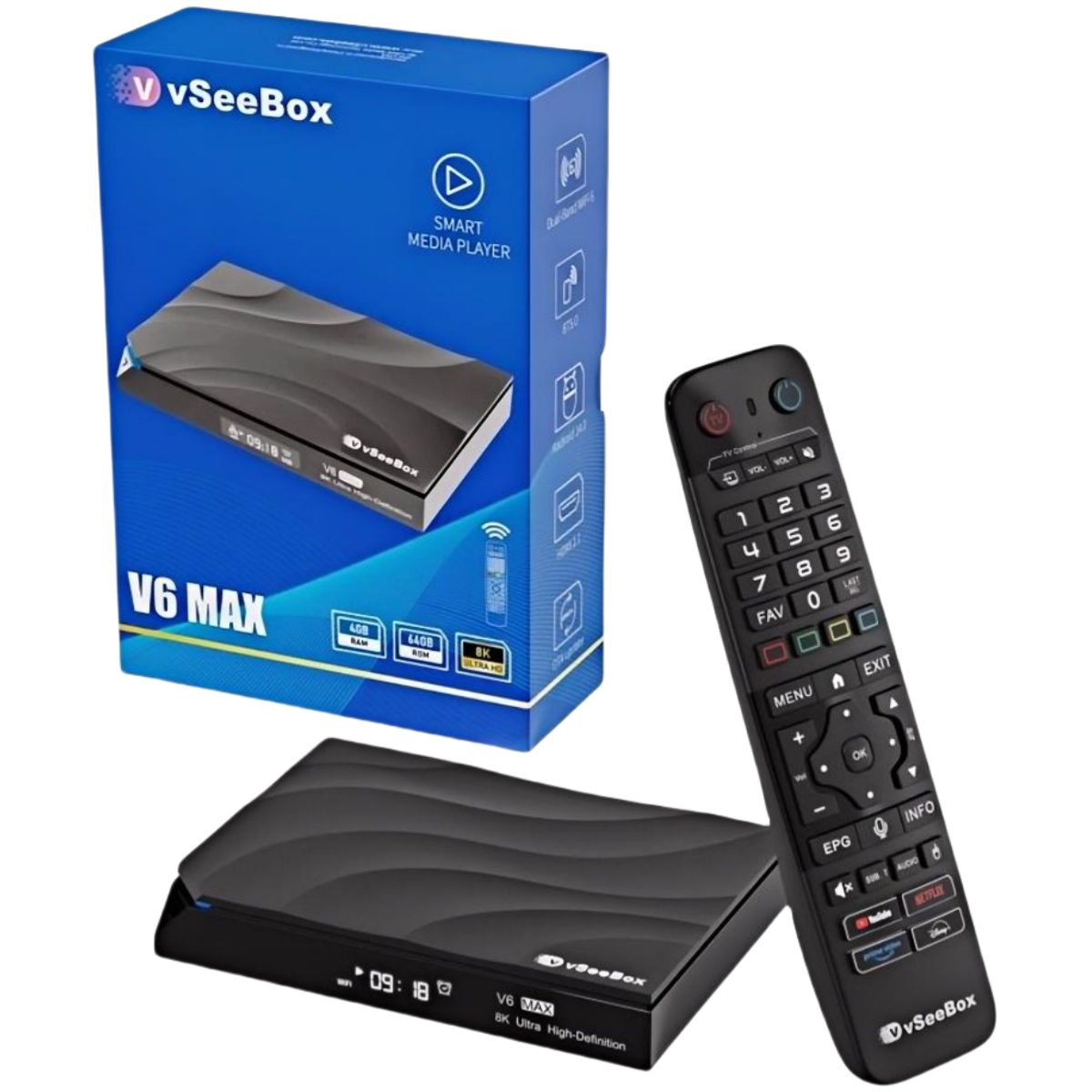
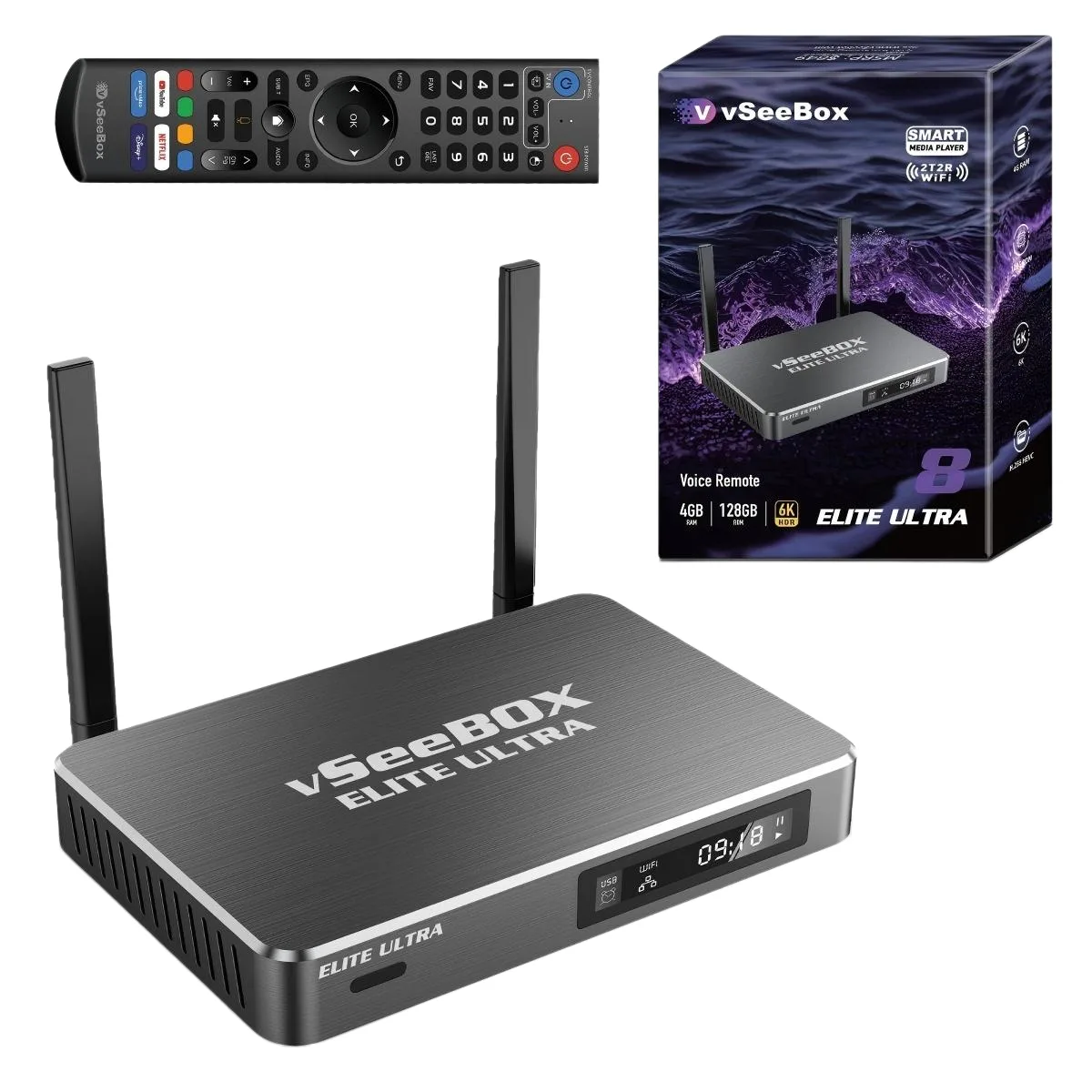
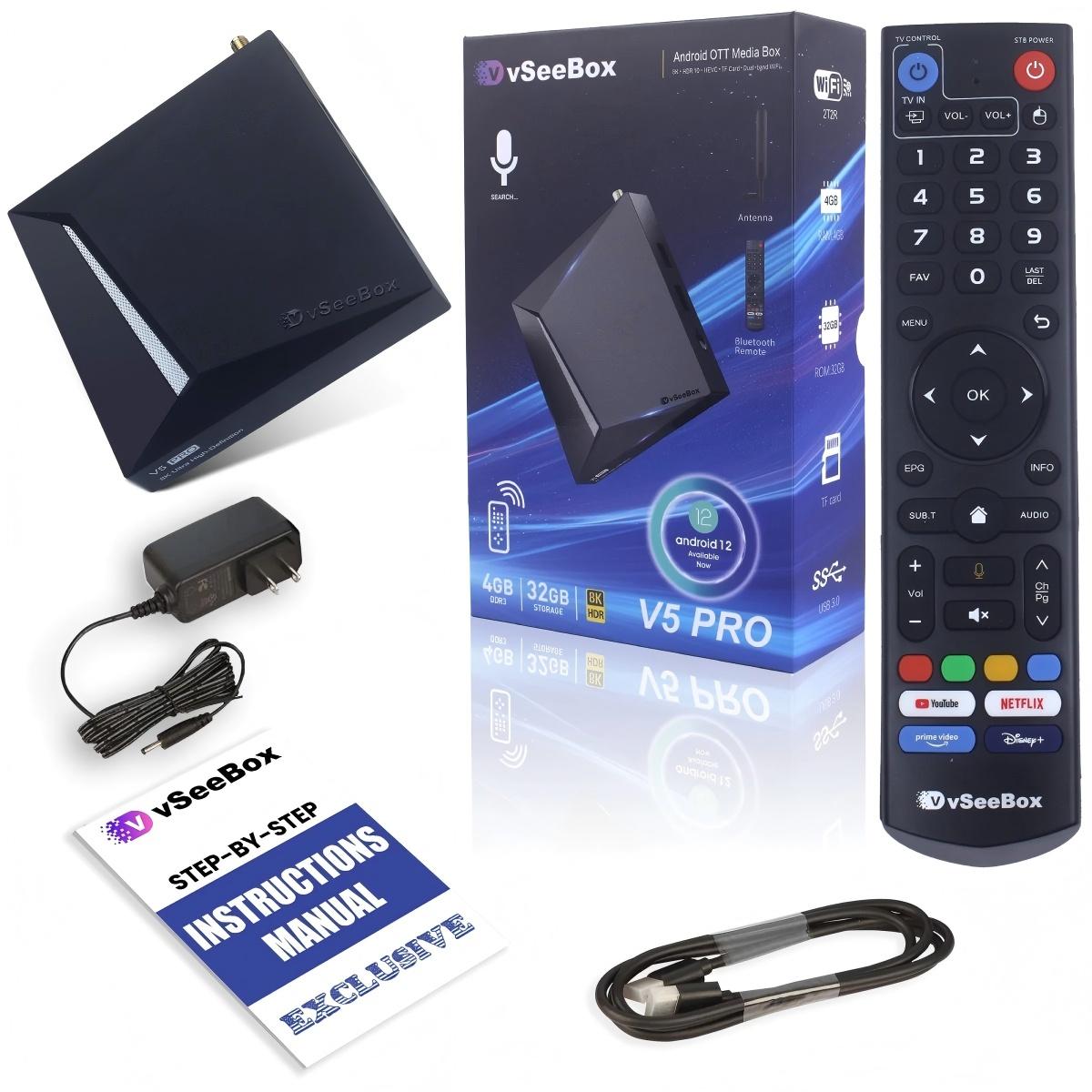
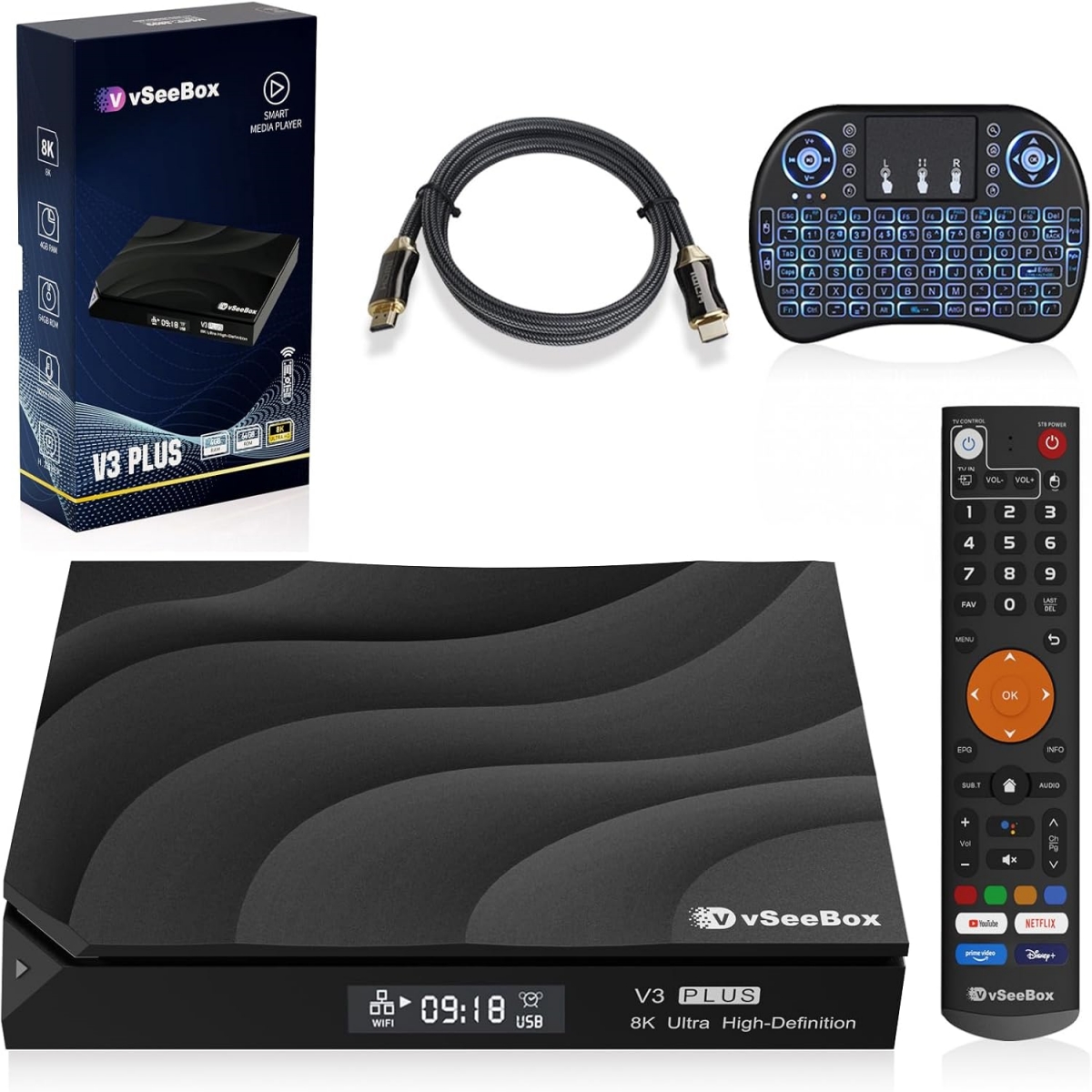
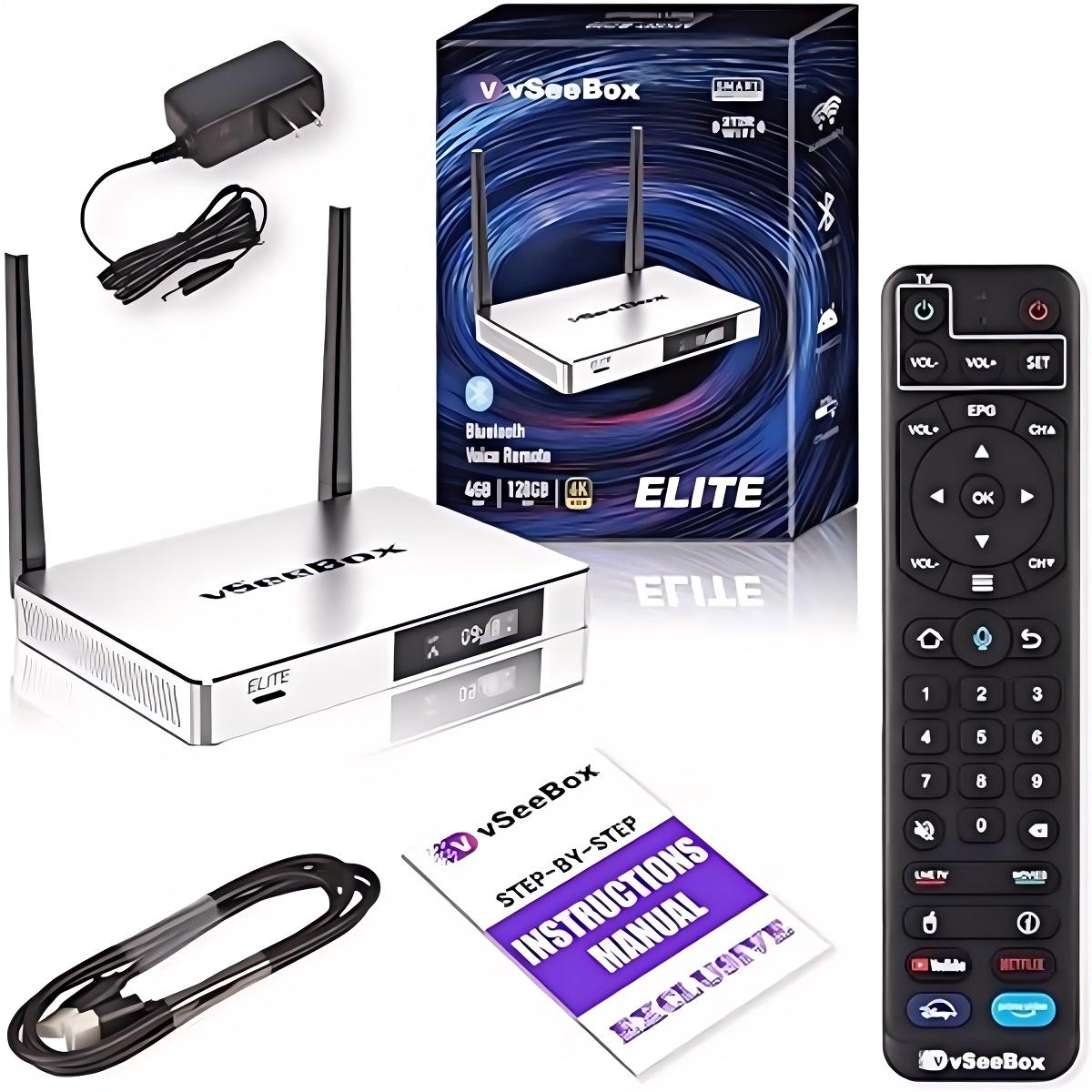
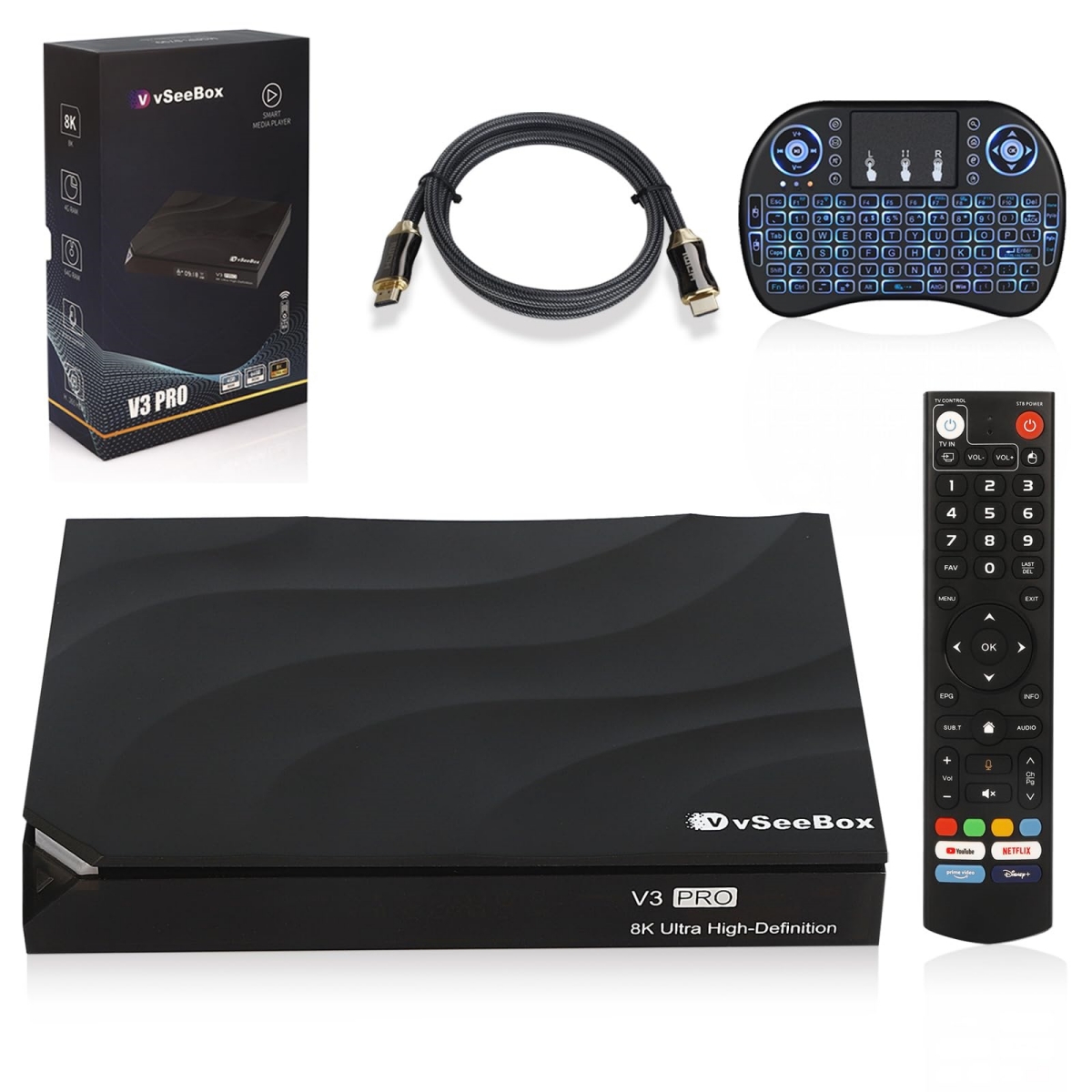
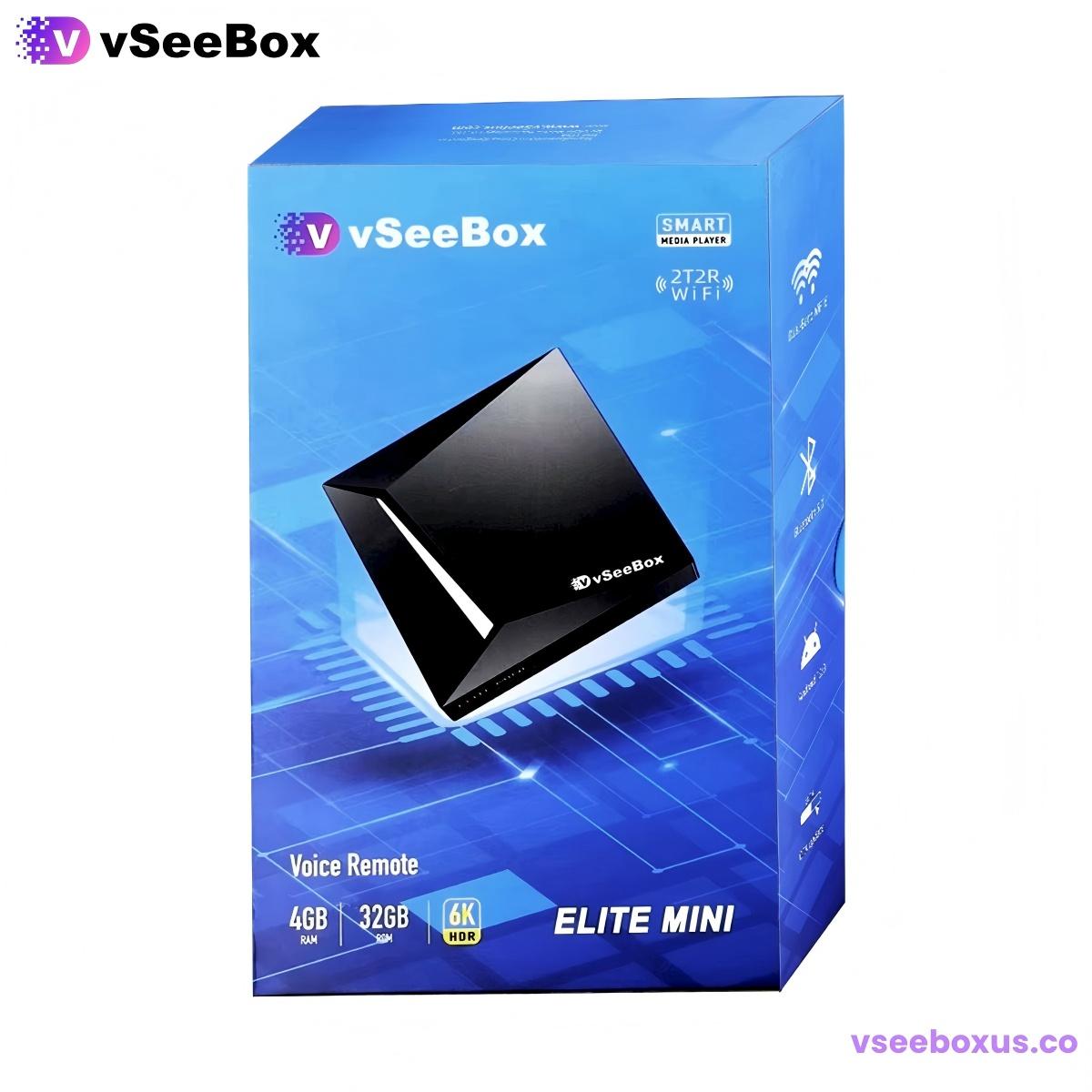
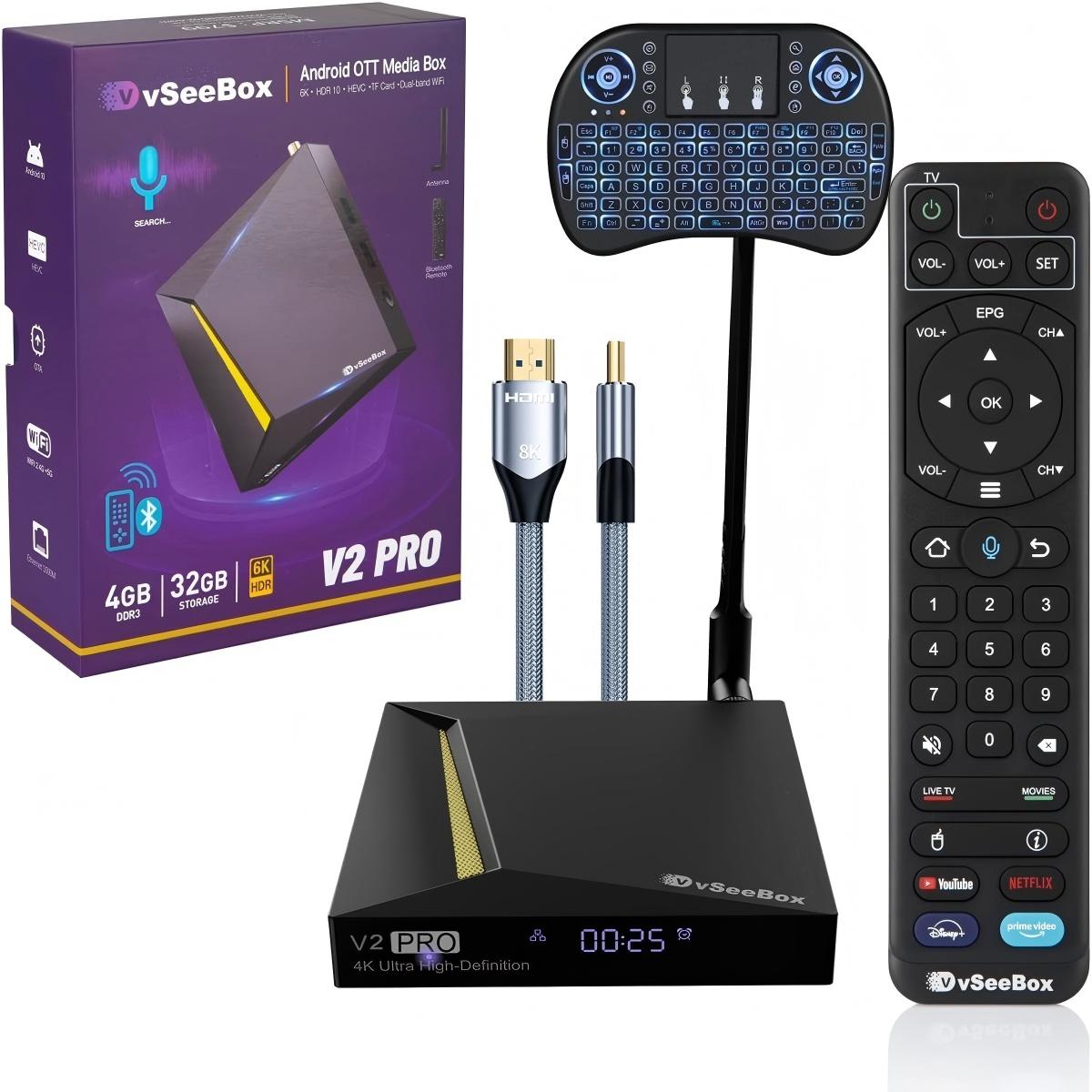
Many first-time users feel confused when unboxing a new Android TV box, worrying that complicated installation and system settings will affect their viewing experience. In fact, all vSeeBox series devices are designed with beginner-friendliness as a core feature, supporting true plug-and-play and one-click quick setup. Whether you purchase the latest flagship Elite Ultra, mainstream V6 Pro, high-end V6 Max, or flagship V6 Plus, the overall installation and setting process is universal and can be completed within 5 minutes without professional skills or auxiliary tools. This detailed step-by-step guide will help new users quickly finish device setup and start enjoying smooth home entertainment.
First, complete the physical hardware connection, which is the foundation of stable device operation. After unboxing your vSeeBox device, check the complete accessories including the TV box body, power adapter, HDMI cable, Bluetooth voice remote, and user manual. First, connect one end of the HDMI cable to the HDMI interface of the TV box, and plug the other end into the HDMI port of your home smart TV or monitor. Next, connect the power adapter to the device’s power interface and plug it into a stable power socket. After powering on, the device will automatically start up, and the TV screen will instantly display the vSeeBox startup interface, indicating that the hardware connection is successfully completed. The whole process requires no debugging and is friendly for users of all ages.
The second step is network connection configuration, which determines the fluency of long-hour media playback. All vSeeBox models support dual-band WiFi 6 (2.4GHz + 5GHz) and Bluetooth 5.0. After entering the system homepage, find the network setting icon, select your home WiFi name, and enter the password to complete wireless connection. For users pursuing ultra-stable viewing quality, especially for high-definition sports matches and marathon viewing, it is recommended to use the Gigabit Ethernet port equipped on Elite Ultra, V6 Max and V6 Plus for wired network connection. Wired transmission effectively avoids wireless signal interference, ensuring zero buffer and zero frame drop during high-bitrate media playback.
The third step is simple system initialization and adaptation. All vSeeBox devices come with the official optimized Android 14 system out of the box, with no pre-installed junk software or redundant advertisements. After networking, the system will automatically match the latest time zone and resolution parameters according to your usage environment. Users only need to select the system language and complete remote pairing. For the backlit Bluetooth voice remote equipped on flagship models, long press the pairing button to complete fast linkage. After successful pairing, you can use one-click voice search, playback control, and function switching, greatly improving daily operation efficiency.
The final step is daily use optimization suggestions. After completing the basic setup, users can properly adjust the picture mode and sound effect parameters according to their TV screen size and personal preferences. The Android 14 system supports intelligent scene adaptation, which can automatically optimize picture color and definition according to movie and sports viewing scenarios. In addition, it is recommended to turn on the automatic background cleaning function, which can intelligently release running memory, ensure long-term smooth operation of the device, and avoid lag caused by accumulated cache.
Overall, the entire setup process of vSeeBox TV boxes is extremely simple and efficient. The brand’s optimized hardware and system greatly reduce the threshold for home entertainment equipment use. Even users who have never used an Android TV box can complete independent installation and setting in a few minutes.
If you are planning to upgrade your home viewing device, don’t miss the current seasonal limited promotion (June 12–21 PDT). All vSeeBox mainstream models including Elite Ultra, V6 Pro, V6 Max, and V6 Plus enjoy exclusive discounted prices, allowing you to own a high-performance home entertainment device at the most cost-effective price.