
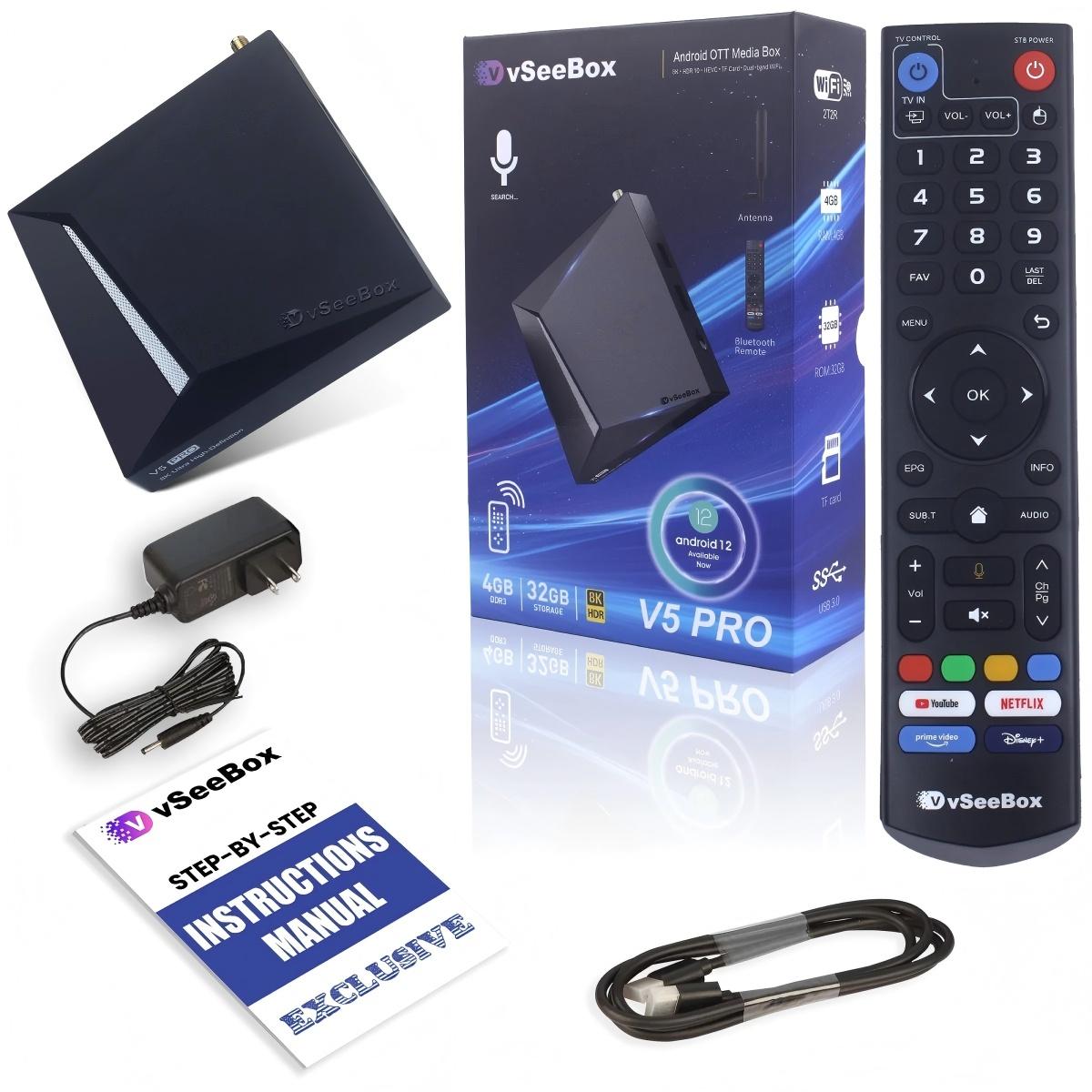
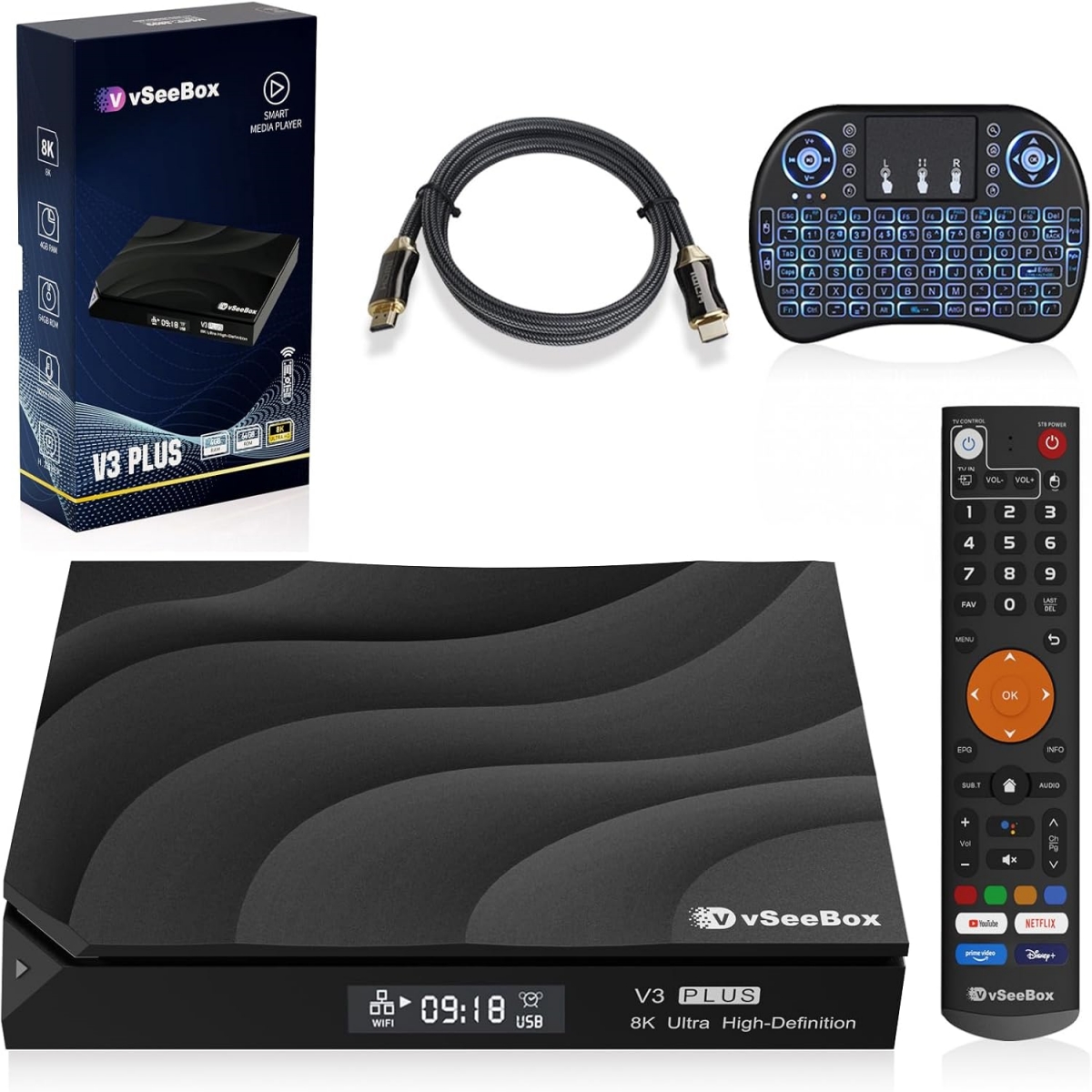
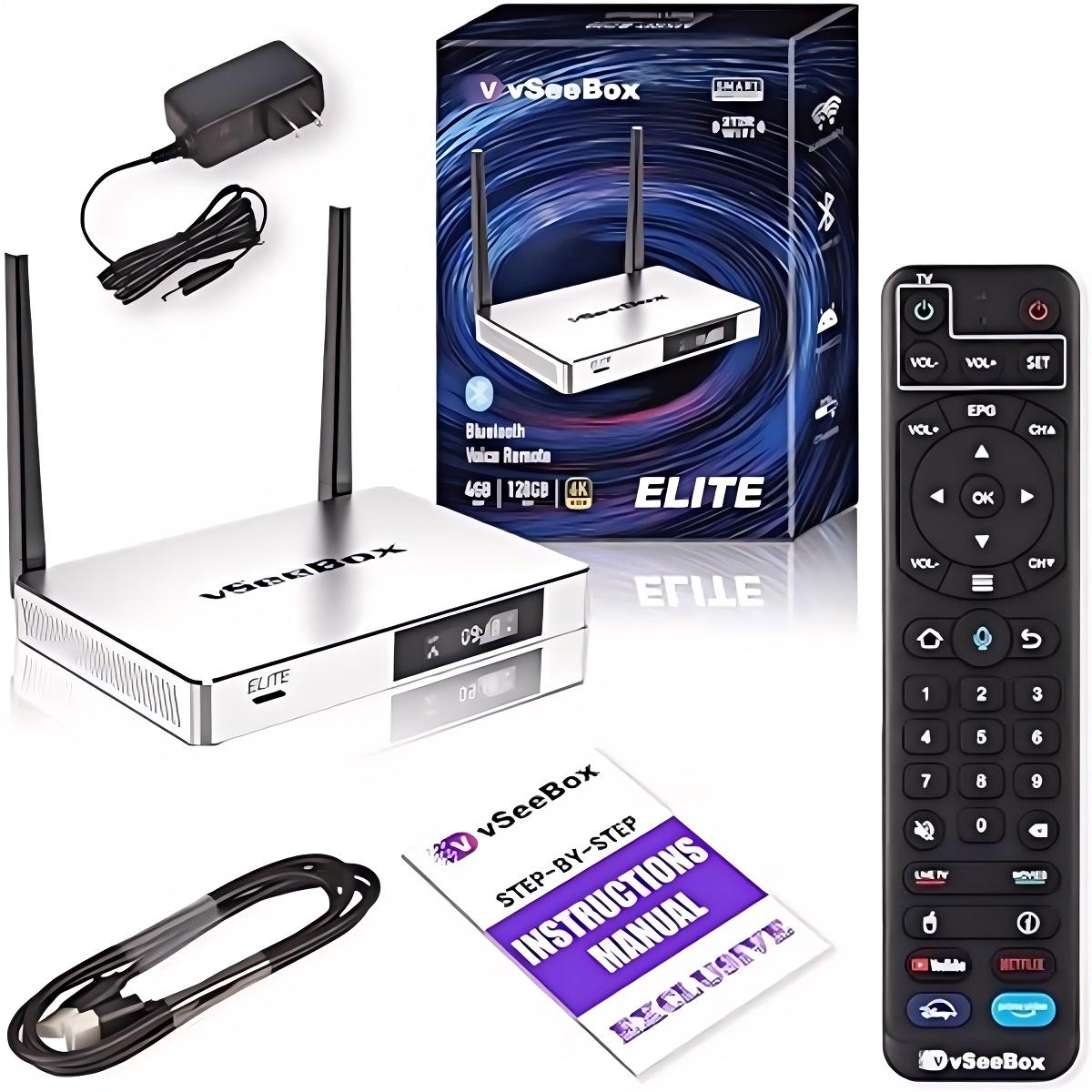
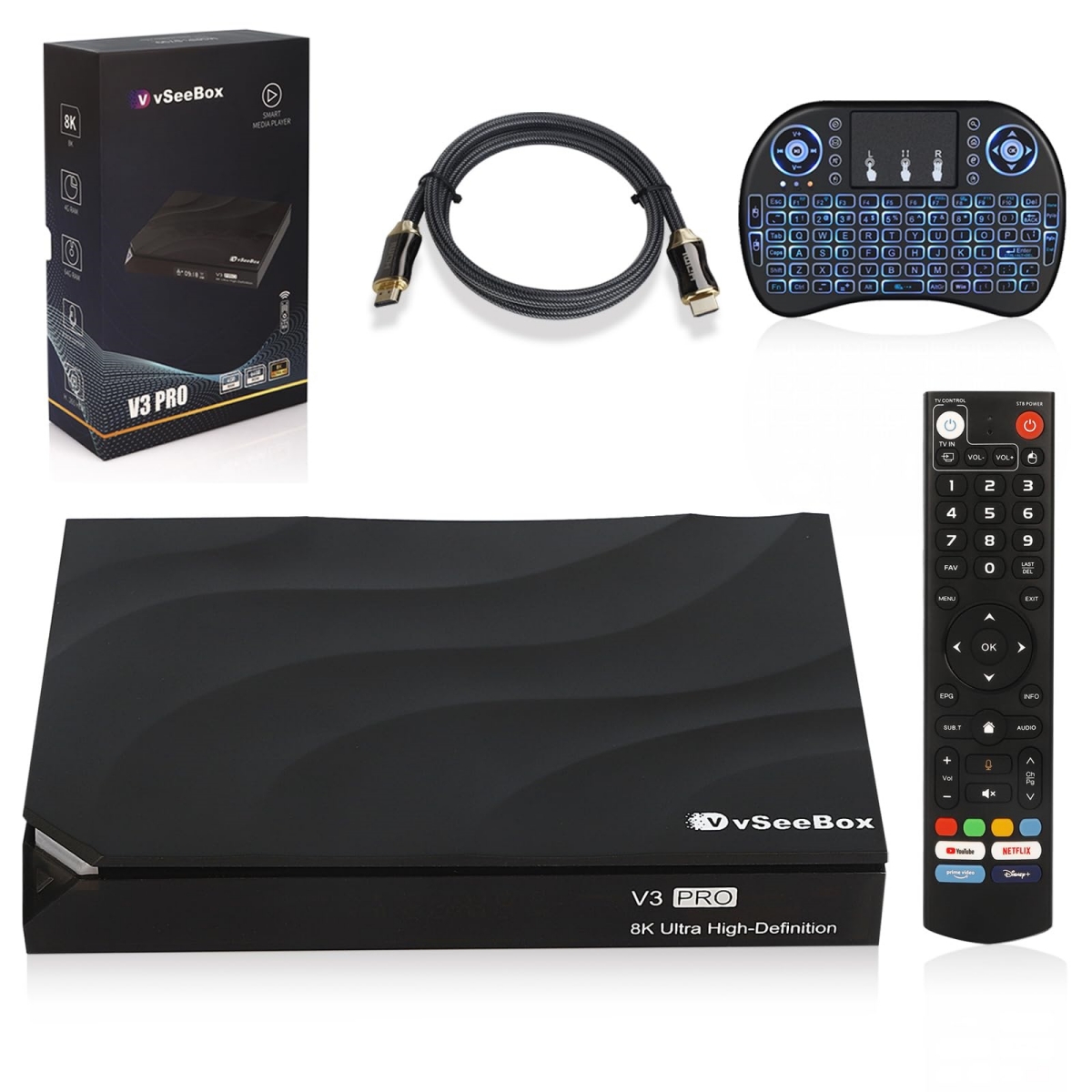
vSeeBox Quick Troubleshooting: Fix Common Issues Fast
🛠️ vSeeBox Quick Troubleshooting
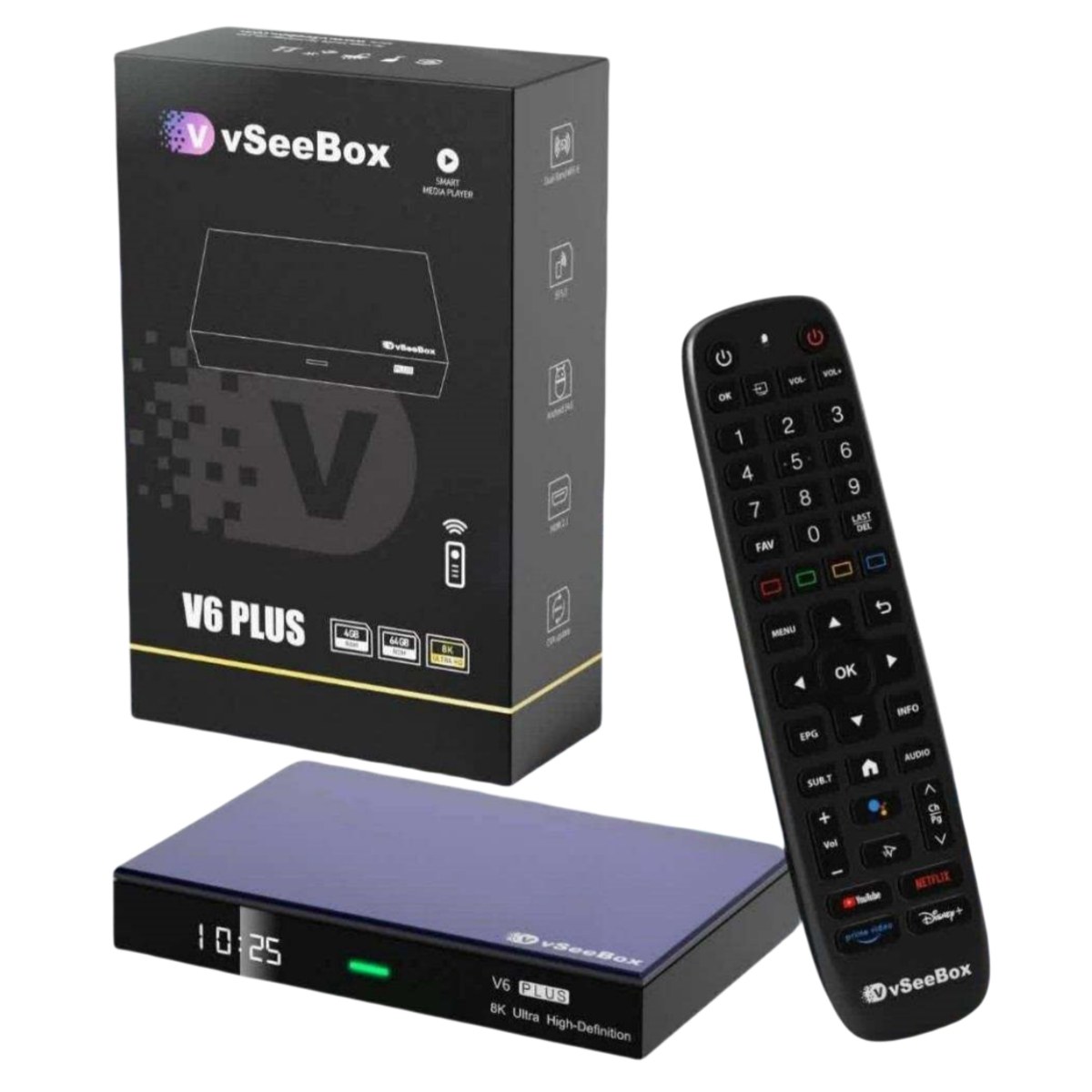
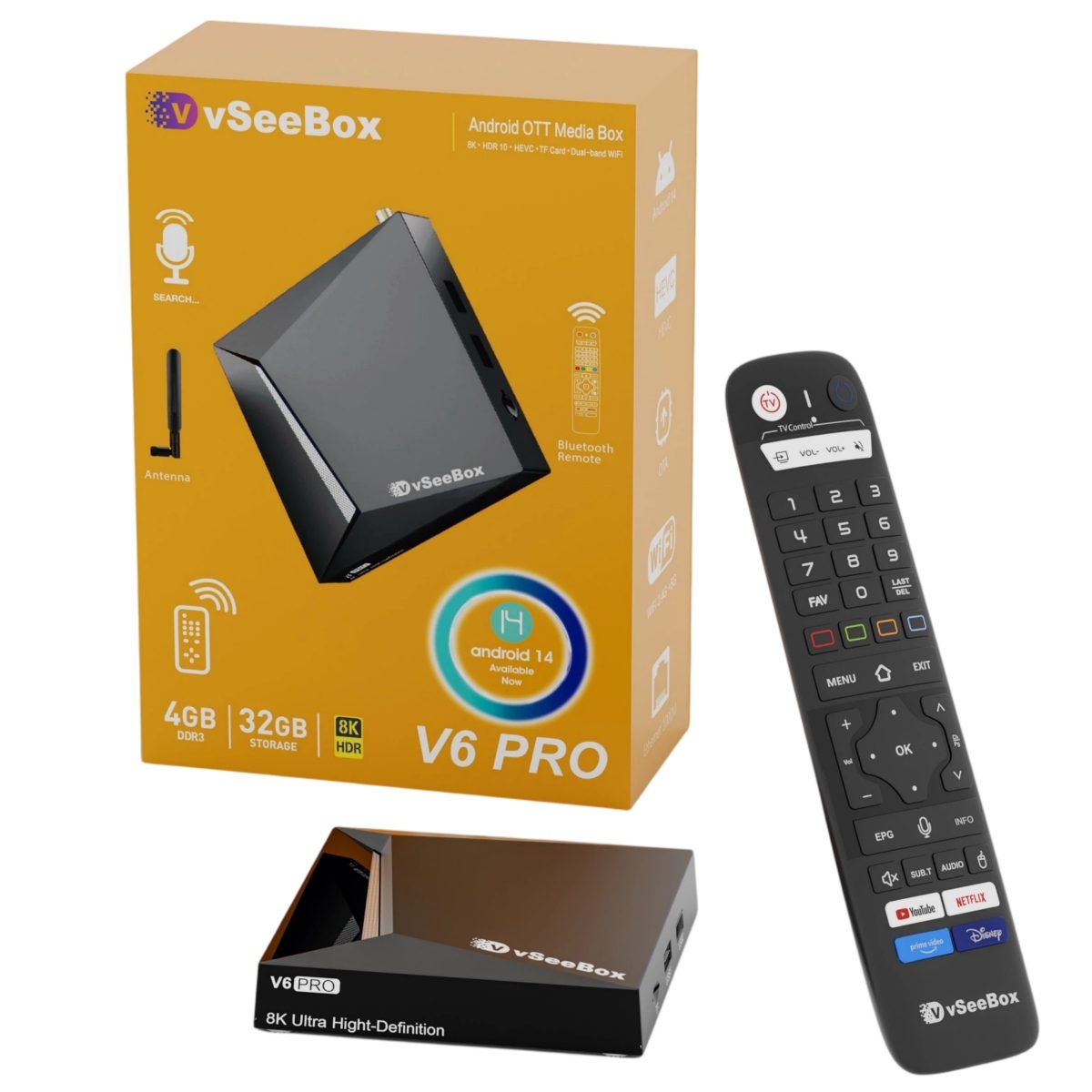
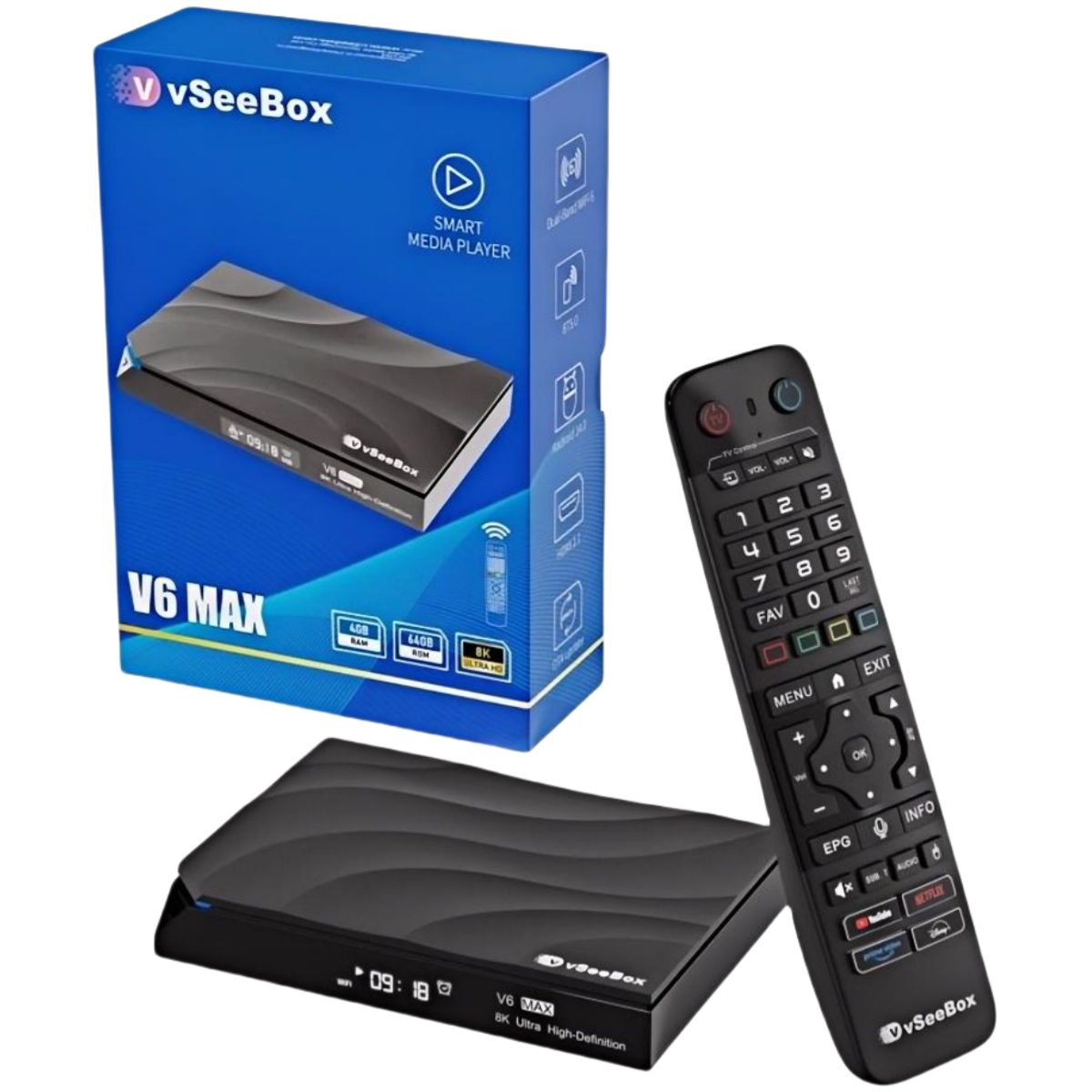
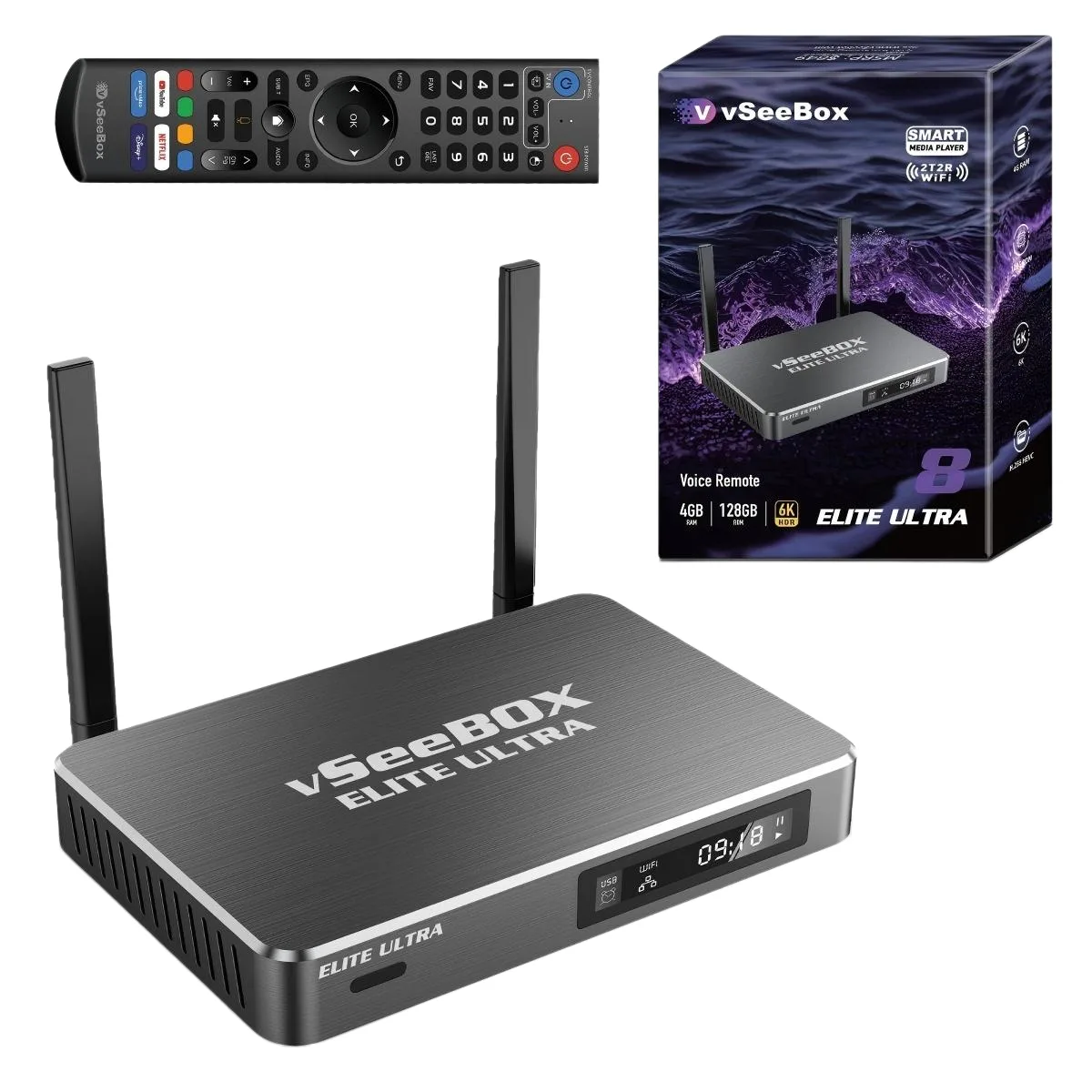
Having issues? Start here! 80% of problems get fixed in 3 minutes or less.Works for all vSeeBox models, including the V6 Plus – V6 Series Flagship & Best Seller.
⚡ First Step: 30-Second Quick Fix (Do This First!)
40% of issues are solved right here. Follow these in order:
- 🔌 Power cycle your vSeeBox – unplug it for 30 seconds, then plug it back in
- 📶 Restart your router – unplug it for 60 seconds, then plug it back in
- 🔋 Put in fresh remote batteries – use name-brand ones (cheap dollar-store batteries don't work well)
- 📺 Reseat the HDMI cable – unplug both ends and plug them back in firmly
💡 All done? If it's working now, you're good to go!Still having issues? Find your problem below →
🎮 Issue #1: Remote Not Working / Won't Pair
Our #1 most common support ticket. Follow these steps:
Quick Fix Steps
- Install fresh name-brand batteries – this alone fixes 40% of remote issues
- Move closer to the vSeeBox – within 10 feet works best
- Hold down OK + Back buttons together for 5 seconds until the light flashes
- Wait 15 seconds – pairing happens automatically
Still Not Working?
- Move your WiFi router at least 3 feet away from the vSeeBox
- Turn off other Bluetooth devices nearby temporarily
- Test the remote: Point it at your phone camera and press a button – if you see a red light on your phone screen, the remote is fine. No light = remote is dead.
📶 Issue #2: WiFi Won't Connect / Keeps Dropping
Quick Fix Steps
- Restart your router (unplug for 60 seconds) – this fixes about 60% of WiFi problems
- Move closer to your router (walls and distance weaken the signal a lot)
- Forget and reconnect:
- Go to Settings → Network
- Select your WiFi network → tap Forget
- Select it again and re-enter your password
- Try switching bands:
- Far from router → use 2.4GHz for better range
- Close to router → use 5GHz for faster speeds
Pro Tips
- Don't hide your router in a closet – put it up high and out in the open
- Microwaves, Bluetooth speakers, and security cameras can mess with WiFi signal
📺 Issue #3: TV Shows "No Signal"
Quick Fix Steps
- Grab your TV remote and find the button that says Source or Input
- Press it and cycle through the options (HDMI1, HDMI2, HDMI3...)
- Stop when you see the vSeeBox home screen
- Still nothing? Unplug the HDMI cable at both ends and plug it back in tight
Still No Picture?
- Try a different HDMI port on your TV
- Try a different HDMI cable if you have a spare
- Make sure the vSeeBox light is on (no light = power isn't plugged in right)
🐢 Issue #4: Slow / Freezing / Apps Crashing
Quick Fix Steps
- Restart the device (unplug for 30 seconds) – fixes about half of performance issues
- Delete apps you don't use (too many apps slow things down)
- Clear app cache: Settings → Apps → Pick the app → Storage & Cache → Clear Cache
- Check for updates: Settings → System → System Update
Good to Know
- We recommend restarting once a week to keep things running smooth
- The V6 Plus has the Amlogic 905Y5 chip + 4GB DDR4 RAM – it's built to run fast. If it's slow, it's almost always a software thing, not hardware.
🔊 Issue #5: No Sound
Quick Fix Steps
- Make sure volume is turned up on both the vSeeBox and your TV (yes, people really forget this)
- Try a different app to see if it's just that one app
- Restart both the vSeeBox and your TV
- If you use a soundbar or receiver, make sure it's on and set to the right input
❌ Common Error Messages Cheat Sheet
| What You See On Screen | What It Means | How To Fix It |
|---|---|---|
| No Signal | No HDMI connection | Your TV is on the wrong input. Press Source/Input on your TV remote. |
| Authentication failed | Wrong WiFi password | Re-type your WiFi password – double-check uppercase letters. |
| Pairing failed | Remote won't connect | Hold OK + Back for 5 seconds to re-pair the remote. |
| Network error | Internet is down | Restart your router and check your WiFi connection. |
| App not installed | Not enough storage | Delete a few apps you don't use to free up space. |
📞 Tried Everything? Still Stuck?
No worries – we've got your back.
Reach out to our US-based support team:
- 📧 Email: vseeboxus.co@gmail.com
- ⏰ Average response time: 1.7 hours
- 🕐 Hours: 9AM – 9PM EST, 7 days a week
- 💬 English-speaking team based in California
When you email us, please include:
- Your vSeeBox model (like V6 Plus)
- What exactly is going wrong
- What you've already tried
This helps us fix your issue way faster!
📚 Need More Details?
Looking for in-depth steps and advanced troubleshooting tips?
→ Check out our full Complete vSeeBox User Guide & Troubleshooting Manual