
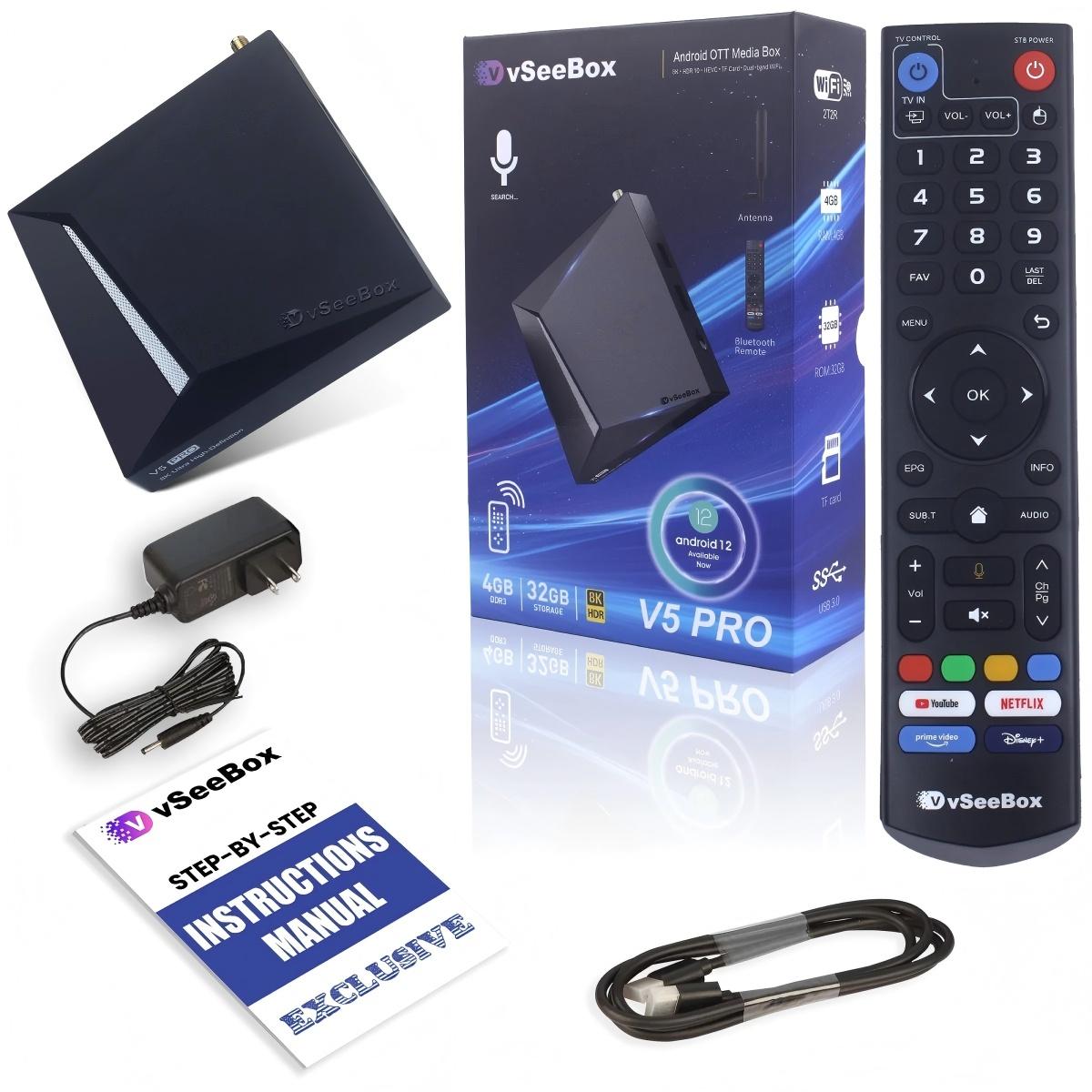
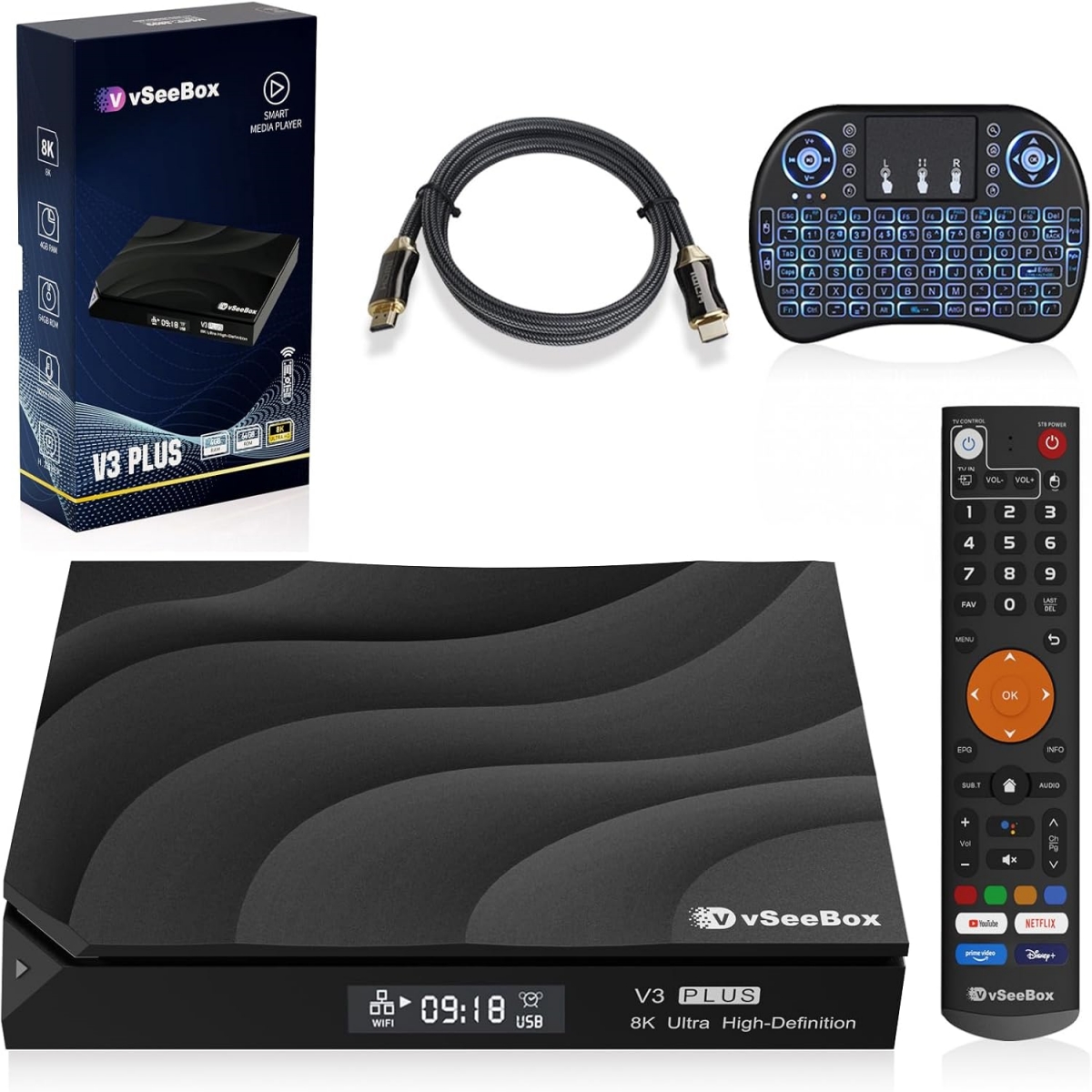
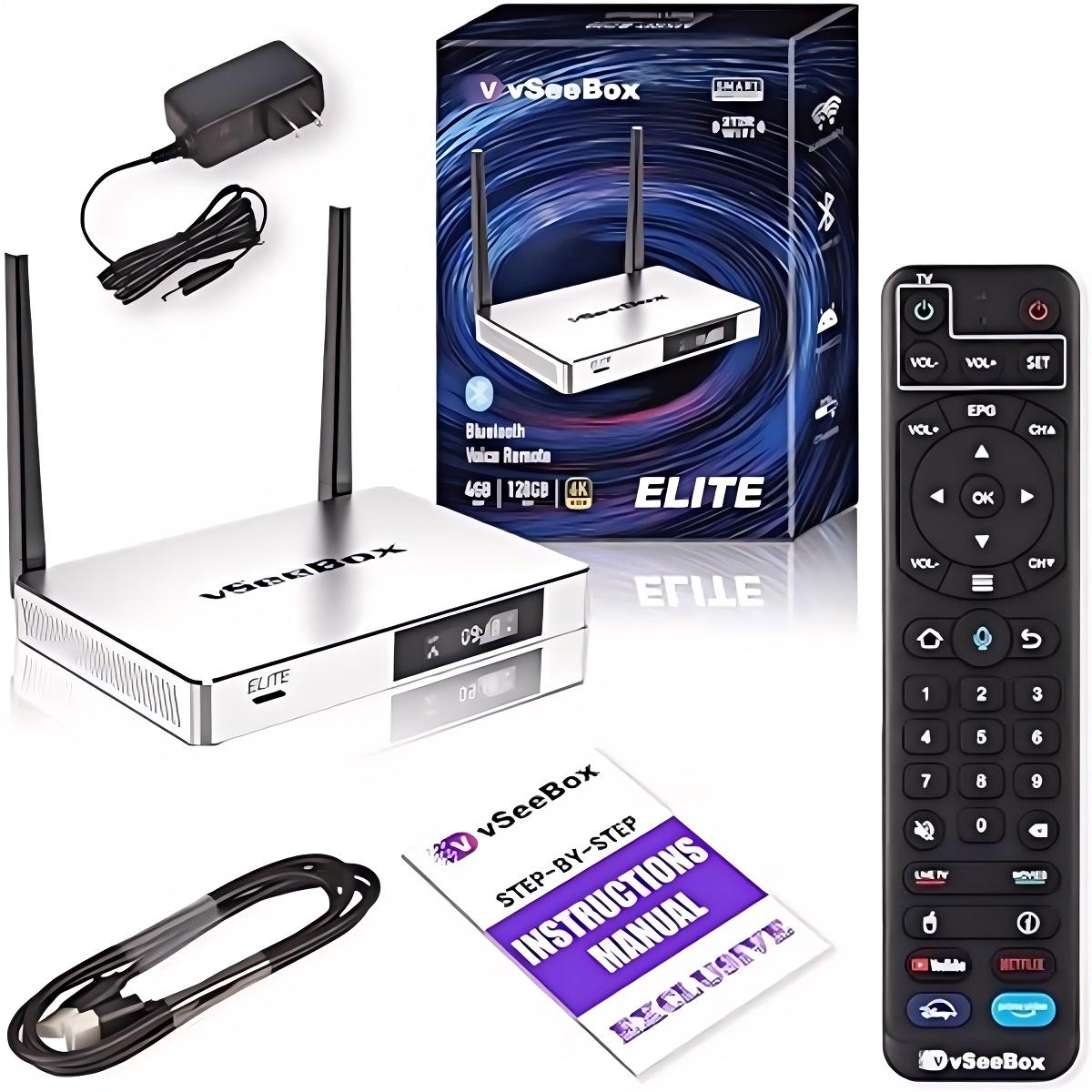
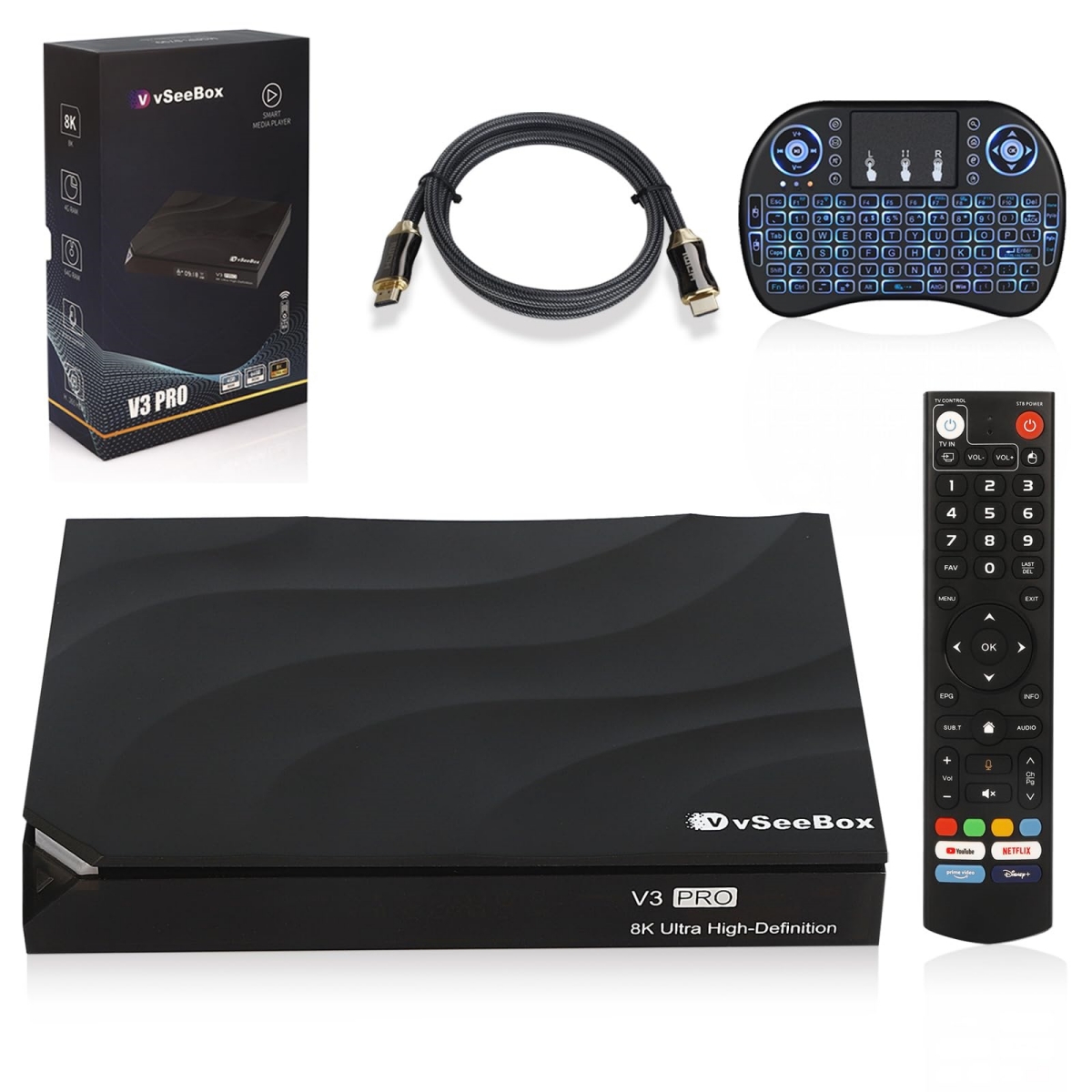
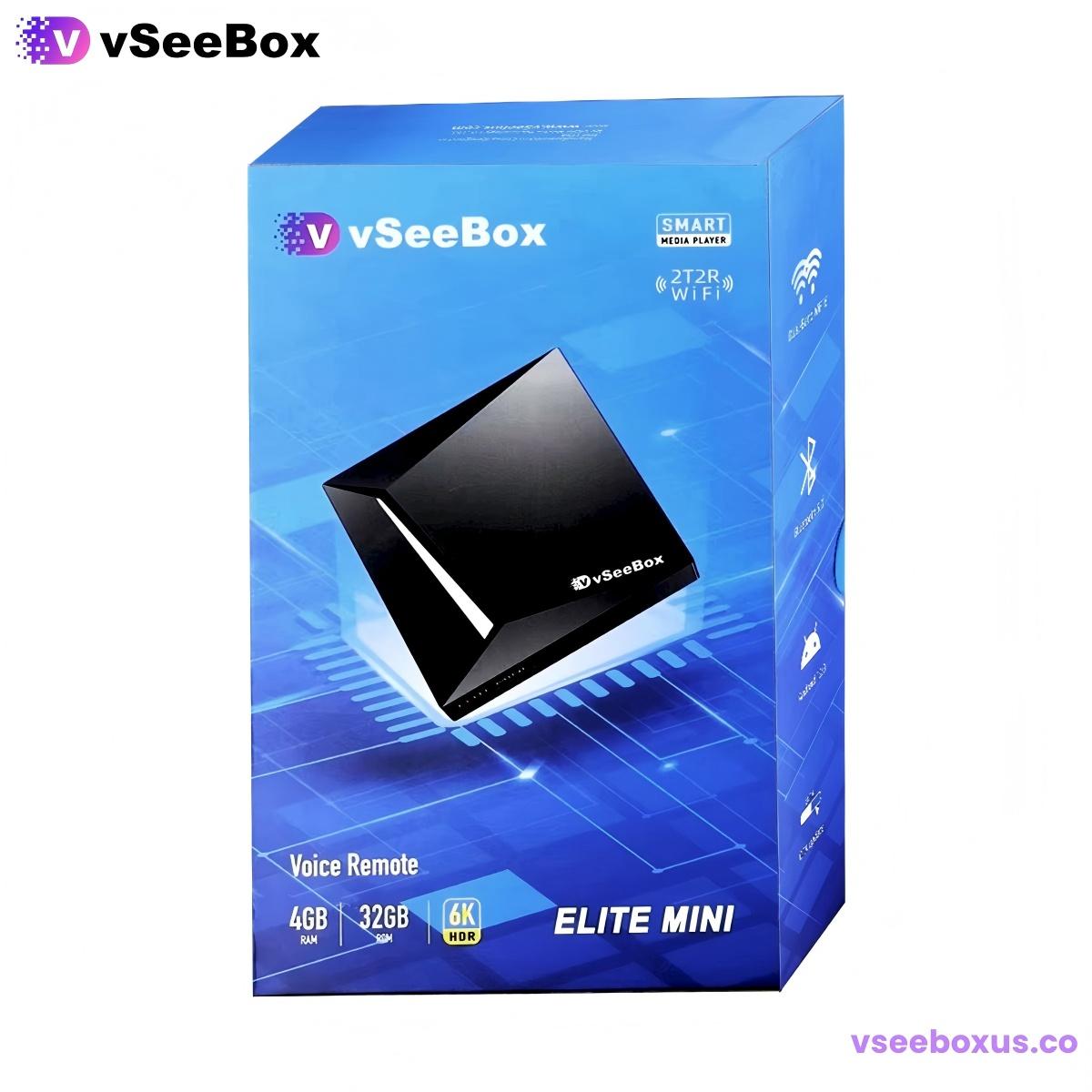
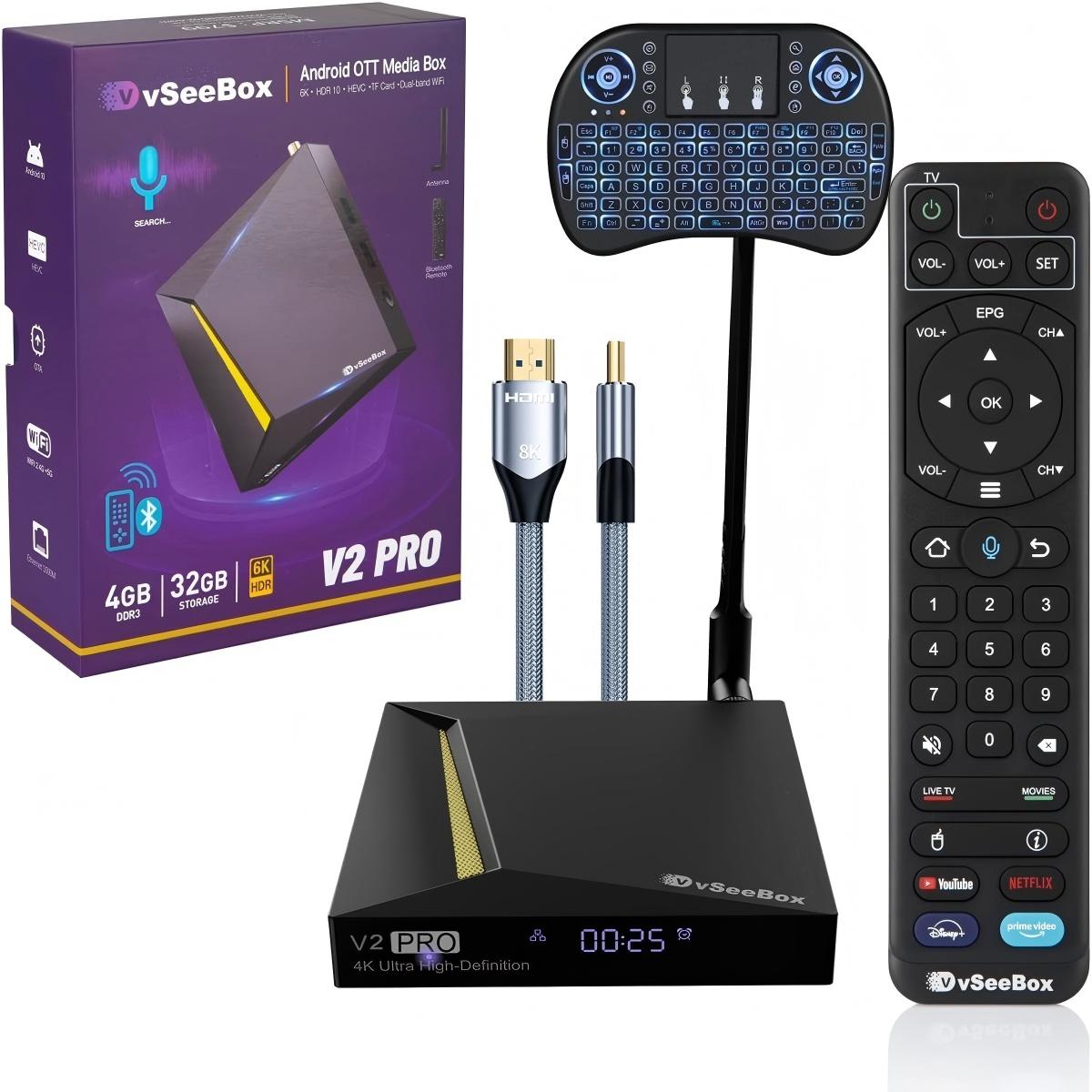
After three years and 5,000+ technical support tickets handled by our team, we know exactly what goes wrong with vSeeBox devices – and more importantly, how to fix them fast.
This isn't your average generic user manual. This is the real-world troubleshooting guide we wish existed when we started. Every solution in this article has been tested and confirmed to work by our support team, based on actual customer issues.
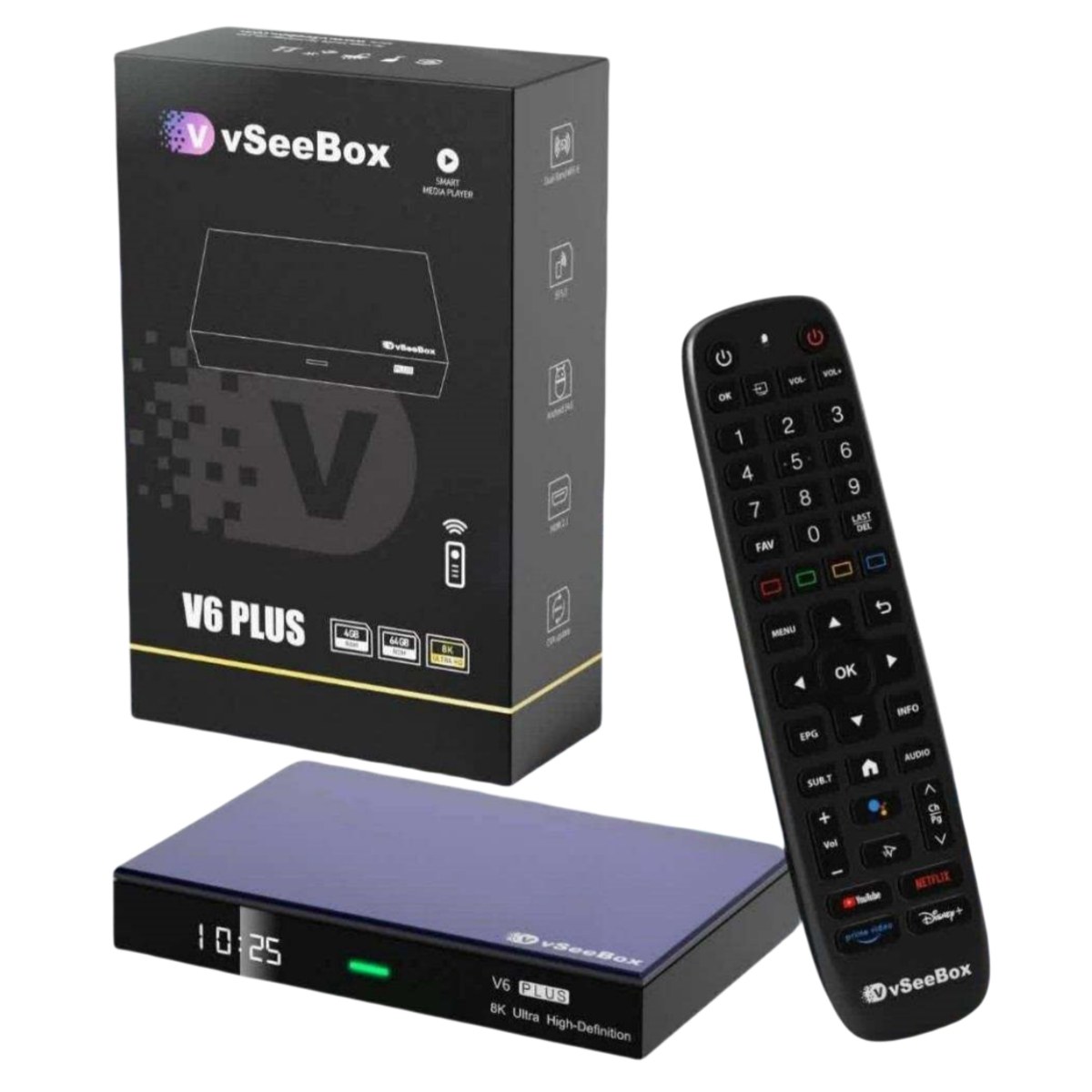
This guide focuses on the vSeeBox V6 Plus – flagship of the V6 series and our best-selling model, which accounts for 72% of our support volume. Most solutions also apply to other vSeeBox models.
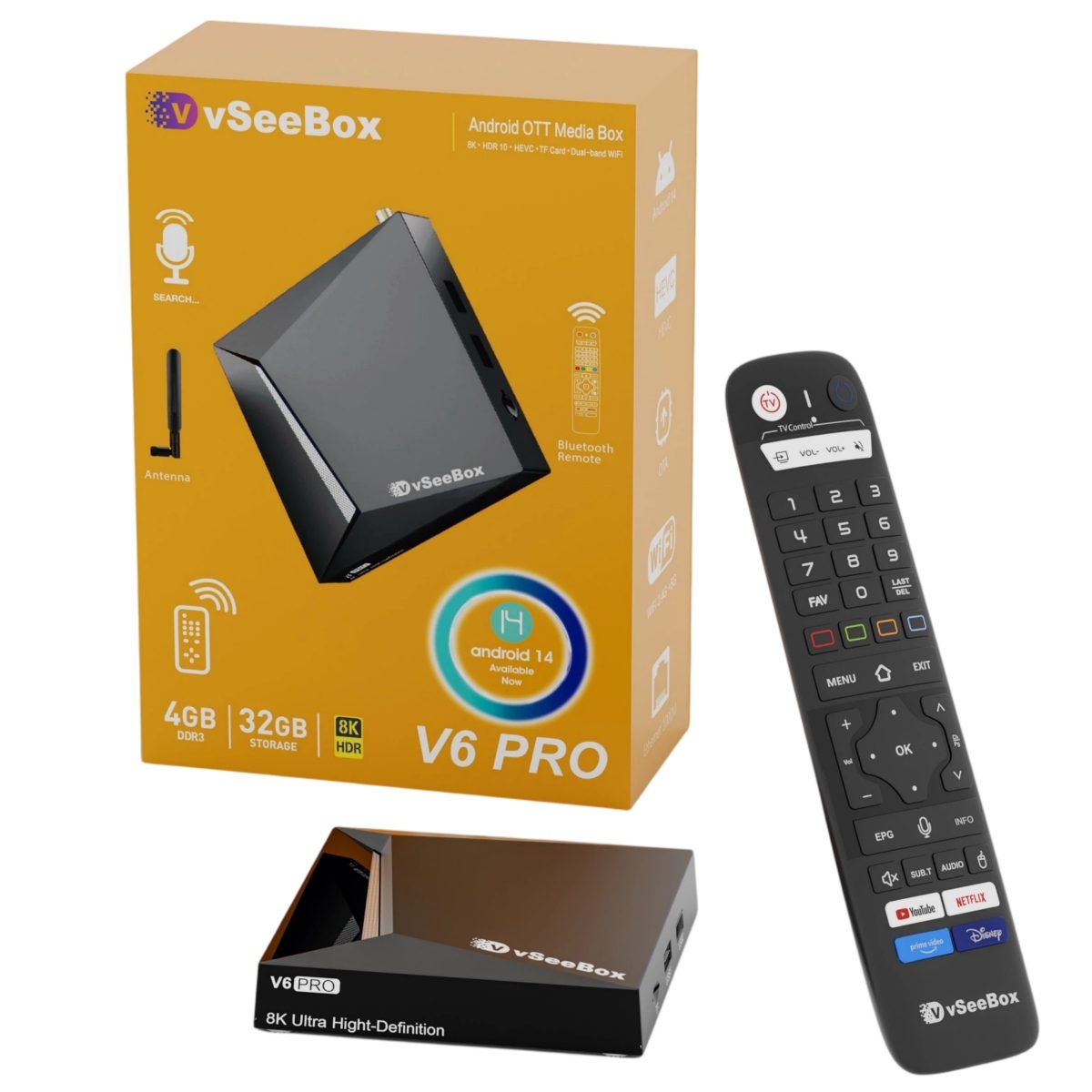
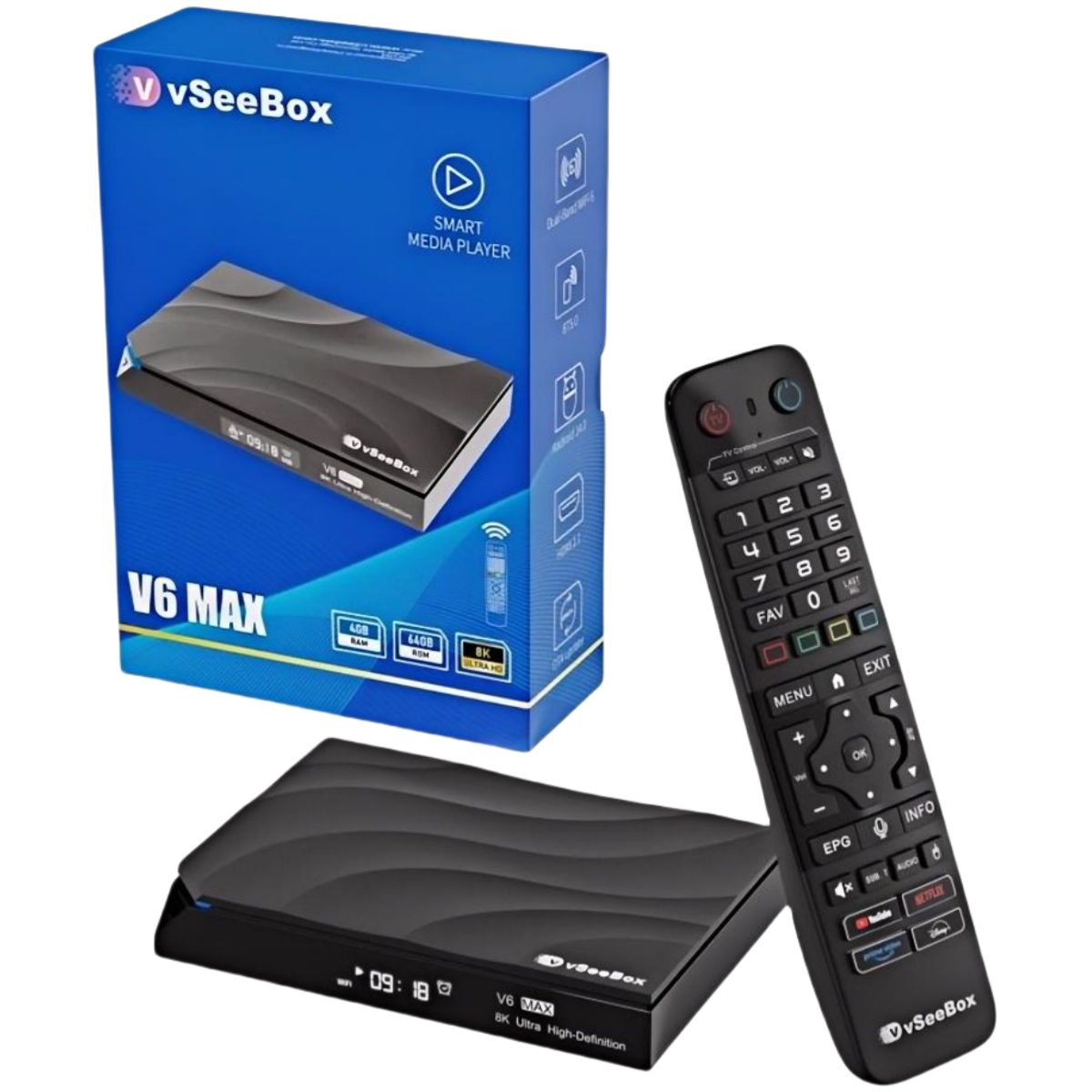
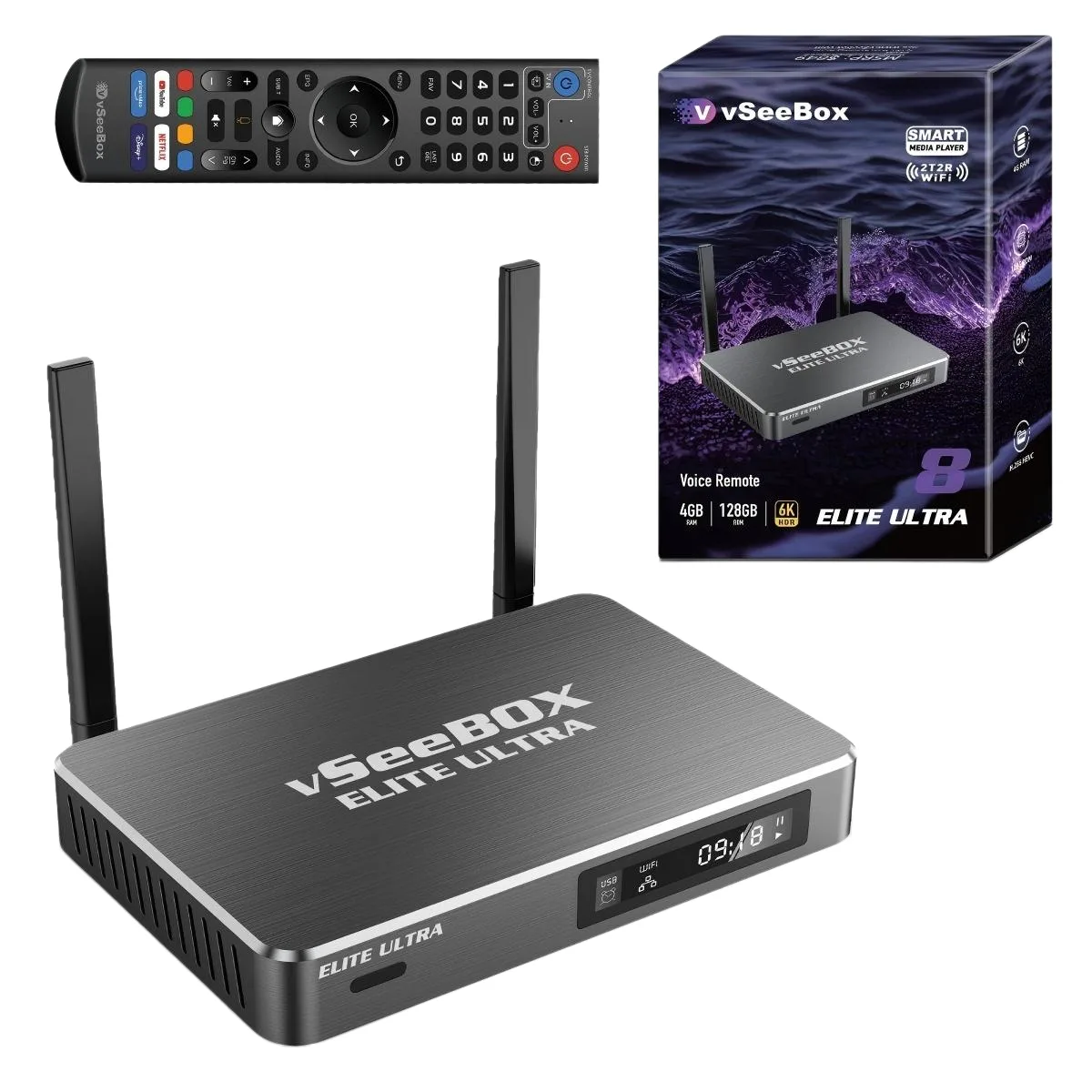
👉 Not sure which model you have? Compare all vSeeBox models side by side to find out.
👉 Not sure which model you have? Compare all vSeeBox models side by side to find out.
⚡ 30-Second Quick Diagnostic Checklist
Before diving into specific issues, run through this quick checklist. About 40% of support tickets are solved right here:
| Check | What to Do | If It Works |
|---|---|---|
| 🔌 Power | Unplug power for 30 seconds, plug back in | You'd be surprised how many issues this fixes |
| 📶 WiFi | Restart your router (unplug 30 seconds) | Solves 60% of connection problems |
| 🔋 Remote | Replace remote batteries with new ones | Dead batteries = #1 most common support ticket |
| 📺 HDMI | Unplug and replug HDMI cable at both ends | Fixes most no-signal issues |
| 🔄 Restart | Restart vSeeBox from Settings menu | Clears temporary glitches and memory issues |
If none of these work, keep reading for detailed step-by-step solutions.
🎮 Most Common Issue #1: Remote Not Working or Won't Pair
This is our #1 most common support ticket – about 28% of all inquiries are remote-related. Here's the exact troubleshooting sequence we use:
Symptoms
- Remote doesn't respond to button presses
- Cursor moves slowly or lags
- Bluetooth pairing fails
- Only some buttons work
Step-by-Step Fix
Step 1: Replace the batteries (yes, really)
This sounds obvious, but we'd estimate 40% of "broken remotes" just need new batteries. Use fresh, name-brand alkaline batteries – cheap dollar store batteries often don't have enough power for Bluetooth remotes.
Step 2: Re-pair the remote
- Remove one battery from the remote
- On your vSeeBox, go to Settings → Remotes & Accessories
- Select the remote and choose "Forget" or "Unpair"
- Put the battery back in the remote
- Hold the OK + Back buttons together for 5 seconds until the light flashes
- Wait 10-15 seconds for pairing to complete
Step 3: Check for interference
Bluetooth remotes can be affected by other wireless devices. Try:
- Moving WiFi routers at least 3 feet away from the vSeeBox
- Removing USB 3.0 devices from nearby ports
- Turning off other Bluetooth devices temporarily
If it still doesn't work: Contact our support team for a remote replacement under warranty.
📶 Most Common Issue #2: WiFi Connection Problems
WiFi issues are the second most common category, at about 22% of tickets. Here's how to diagnose and fix them:
Symptoms
- Won't connect to WiFi network
- Keeps disconnecting randomly
- Slow speeds or constant buffering
- Can't find your WiFi network
Step-by-Step Fix
Step 1: Restart everything (in this exact order)
- Unplug your modem and router from power
- Unplug your vSeeBox
- Wait 60 full seconds
- Plug modem back in, wait 2 minutes for it to fully boot
- Plug router back in, wait another 2 minutes
- Plug vSeeBox back in and test
This order matters. We've seen customers restart in the wrong order and still have issues.
Step 2: Try 2.4GHz vs 5GHz band
The V6 Plus features WiFi 6 dual-band connectivity. Try switching bands:
- If you're on 5GHz and having range issues → switch to 2.4GHz
- If you're on 2.4GHz and getting slow speeds → switch to 5GHz
- For best performance, stay within 30 feet of your router for 5GHz
Step 3: Optimize your WiFi settings
For best performance with vSeeBox:
- Place your router in a central location, not hidden in a closet
- Avoid placing the router near microwaves, cordless phones, or baby monitors
- If you live in an apartment building, try changing your router's WiFi channel
- Make sure your router firmware is up to date
Step 4: Forget and reconnect
- Go to Settings → Network & Internet
- Select your WiFi network
- Choose "Forget"
- Re-select the network and re-enter your password
Pro tip from our techs: If you have a mesh WiFi system, make sure the vSeeBox connects to the closest node. Sometimes devices get stuck connected to a faraway node.
📺 Most Common Issue #3: HDMI No Signal or Picture Issues
HDMI and display problems account for about 15% of support tickets:
Symptoms
- "No Signal" message on TV
- Picture cuts out intermittently
- Wrong resolution or stretched picture
- No sound through HDMI
Step-by-Step Fix
Step 1: Check the basics first
- Make sure your TV is set to the correct HDMI input
- Unplug and replug the HDMI cable at both ends
- Try a different HDMI port on your TV
- If you have another HDMI cable, try swapping it out
Step 2: Adjust display resolution
If you see a picture but it looks wrong:
- Go to Settings → Display & Sound
- Select "Resolution"
- Try setting it to 1080p 60Hz first – this works with almost all TVs
- Once you have a working picture, you can try higher resolutions like 4K or 8K
Step 3: HDMI-CEC issues
If your TV remote isn't controlling the vSeeBox or vice versa:
- Go to Settings → Display & Sound → HDMI-CEC
- Try toggling CEC off and back on
- Make sure HDMI-CEC is also enabled in your TV settings
Important for LG/Samsung TV owners: Some newer TVs have HDMI 2.1 ports that need special settings enabled. Check your TV manual for "HDMI Enhanced" or "Game Mode" settings.
🐢 Most Common Issue #4: Slow Performance or Freezing
If your vSeeBox feels slow, laggy, or apps keep crashing:
Symptoms
- Apps take a long time to open
- Menu navigation is laggy
- Apps crash or close unexpectedly
- Device freezes completely
Step-by-Step Fix
Step 1: Restart your vSeeBox
This is the simplest fix and works about 50% of the time. A quick restart clears memory and closes background processes.
Step 2: Close unused apps
Just like a phone, apps running in the background use memory:
- Go to Settings → Apps
- Select apps you're not using
- Choose "Force Stop"
- Or better yet, uninstall apps you don't use
Step 3: Clear app cache
Over time, app cache can build up and cause issues:
- Go to Settings → Apps
- Select the problematic app
- Choose "Storage & Cache"
- Tap "Clear Cache"
Step 4: Check for updates
Make sure you're running the latest software:
- Go to Settings → System → About
- Select "System Update"
- Install any available updates
- Restart after updating
Good to know: The V6 Plus with Amlogic 905Y5 processor and 4GB DDR4 RAM is designed to run smoothly for years. If you're experiencing consistent slowness, it's almost always a software issue, not a hardware limitation.
Curious how the V6 Plus stacks up against other models? See our full model comparison with specs and pricing.
Curious how the V6 Plus stacks up against other models? See our full model comparison with specs and pricing.
🔊 Most Common Issue #5: Audio Problems
Sound issues are less common but still frustrating when they happen:
Symptoms
- No sound at all
- Sound cuts in and out
- Audio is out of sync with video
- No surround sound
Quick Fixes
- Make sure volume is turned up on both the vSeeBox and your TV
- Try a different video or app to see if it's app-specific
- Go to Settings → Display & Sound → Audio and try different audio output settings
- If using a soundbar or receiver, make sure it's set to the correct input
- Restart everything: vSeeBox, TV, and sound system
🛠️ Advanced: Factory Reset (Last Resort)
If you've tried everything and still have issues, a factory reset is the final troubleshooting step. This will erase all data and settings, so only do this if you've exhausted other options.
How to Factory Reset
- Go to Settings → System → About
- Select "Factory Reset"
- Confirm when prompted
- Wait 5-10 minutes for the reset to complete
- Set up the device again from scratch
Before you reset: Try contacting our support team first – we can usually fix issues without a full reset. And since we're an official authorized vSeeBox dealer, all warranty repairs are fully covered.
📚 Complete V6 Plus Setup Guide (For New Users)
If you're just getting started with your V6 Plus, here's the quick setup sequence we recommend:
5-Minute Setup
- Connect HDMI cable from vSeeBox to your TV
- Plug in power – the device will turn on automatically
- Select your language from the welcome screen
- Connect to WiFi – enter your network password
- Sign in with Google account (optional but recommended)
- Pair the remote – usually happens automatically
- Install updates – let the system download and install any available updates
- Download your apps – install the apps you use most
Pro tip: After initial setup, go through the display settings and make sure the resolution matches your TV's native resolution for the best picture quality.
Want to learn more about how the V6 Plus technology works? Read our deep dive into V6 Plus features and specs.
Want to learn more about how the V6 Plus technology works? Read our deep dive into V6 Plus features and specs.
❓ Frequently Asked Questions
Q: How often should I restart my vSeeBox?
A: We recommend restarting about once a week to keep things running smoothly. Many people leave their TV boxes on 24/7, which can cause slowdowns over time.
Q: Can I use a universal remote with vSeeBox?
A: Yes! Most Bluetooth universal remotes work with vSeeBox. You can also use your TV remote if HDMI-CEC is enabled on both devices.
Q: Why is my vSeeBox getting warm?
A: It's normal for electronic devices to get warm during use. The V6 Plus is designed to run at safe temperatures. As long as it's not hot to the touch and not shutting off on its own, it's working normally.
Q: Do I need to leave vSeeBox plugged in all the time?
A: You can unplug it when not in use, but most people leave it plugged in for convenience. It uses very little power in standby mode – less than 5 watts.
Q: How long does a vSeeBox typically last?
A: Based on our customer data, most vSeeBox devices last 4-6 years with normal use. The V6 Plus with Amlogic 905Y5 processor is designed to be future-proof for years to come.
📞 When to Contact Support
Most issues can be fixed with the steps in this guide, but don't hesitate to reach out if:
- You've tried all troubleshooting steps and it still doesn't work
- The device appears to be physically defective
- You need help with warranty or replacement
- You have questions not covered in this guide
Our US-based support team is available 7 days a week and typically responds within 2 business hours.
Shop with confidence – every vSeeBox from our store comes with full manufacturer warranty and US-based support.
Shop with confidence – every vSeeBox from our store comes with full manufacturer warranty and US-based support.
🎯 Final Tips From Our Support Team
Before we wrap up, here are our top 3 tips for keeping your vSeeBox running smoothly:
- Restart once a week – Takes 30 seconds and prevents 80% of performance issues
- Keep it updated – Install system updates when they appear, they usually include bug fixes
- Don't block the vents – Make sure the vSeeBox has airflow around it, don't stack things on top
With proper care, your vSeeBox V6 Plus will provide years of reliable entertainment.