
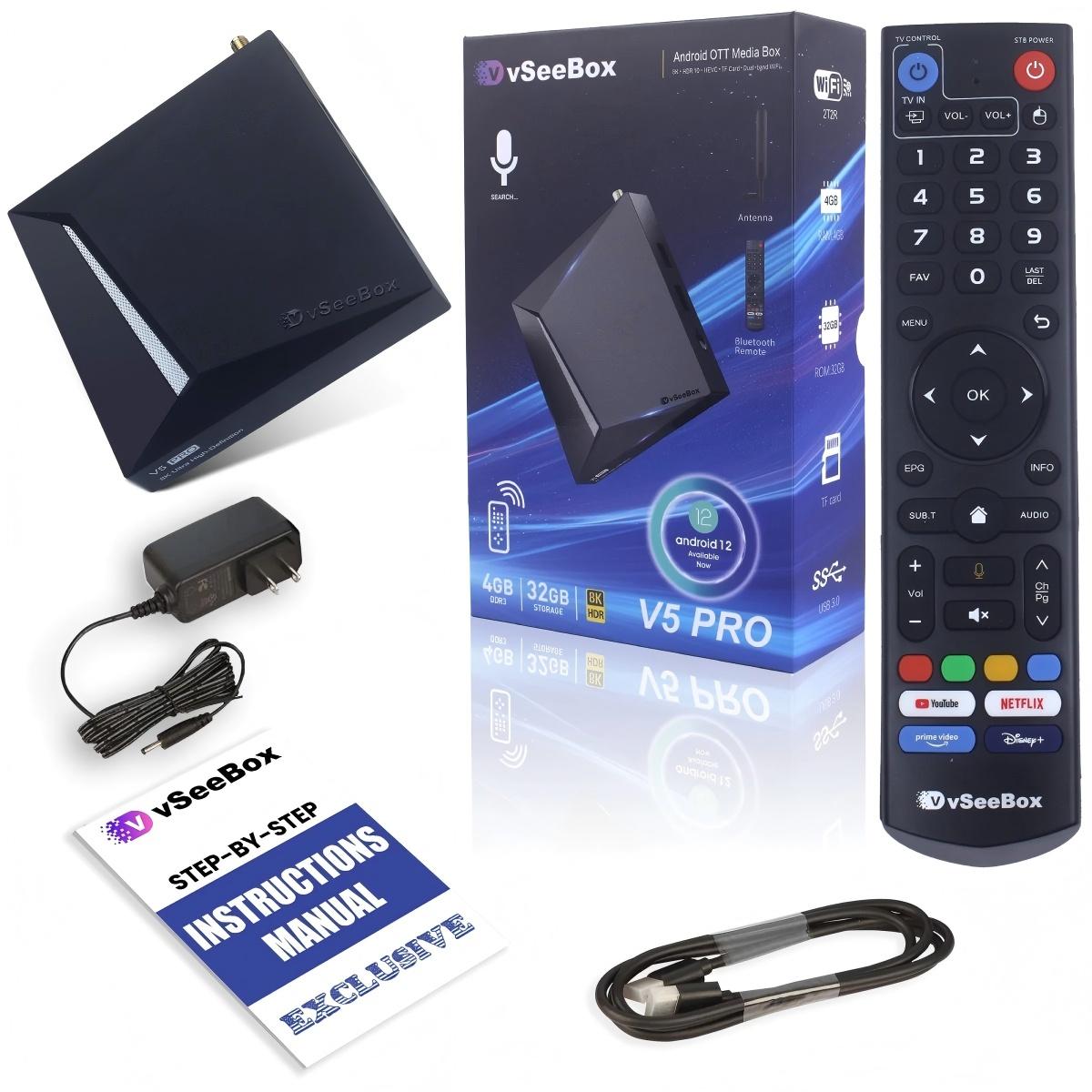
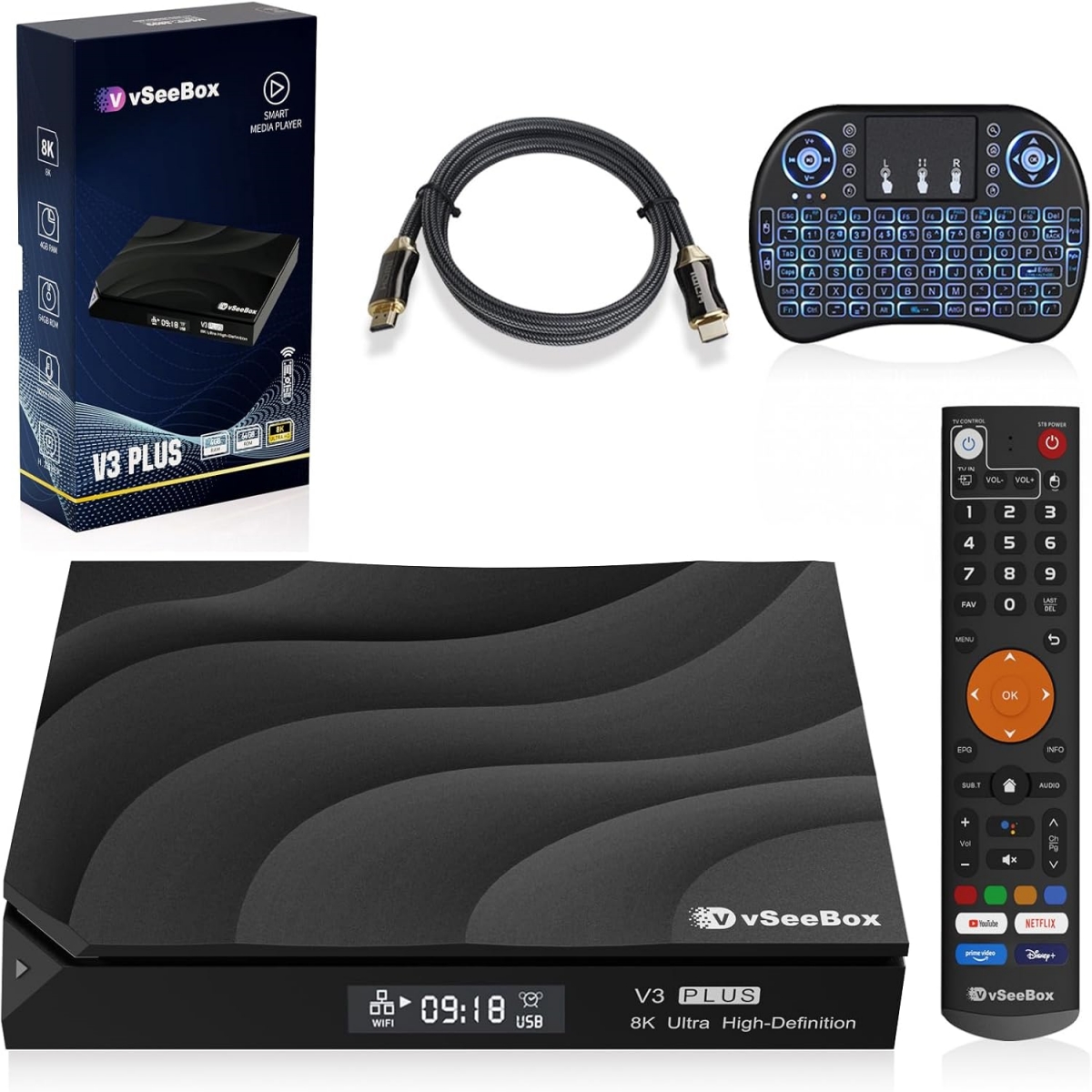
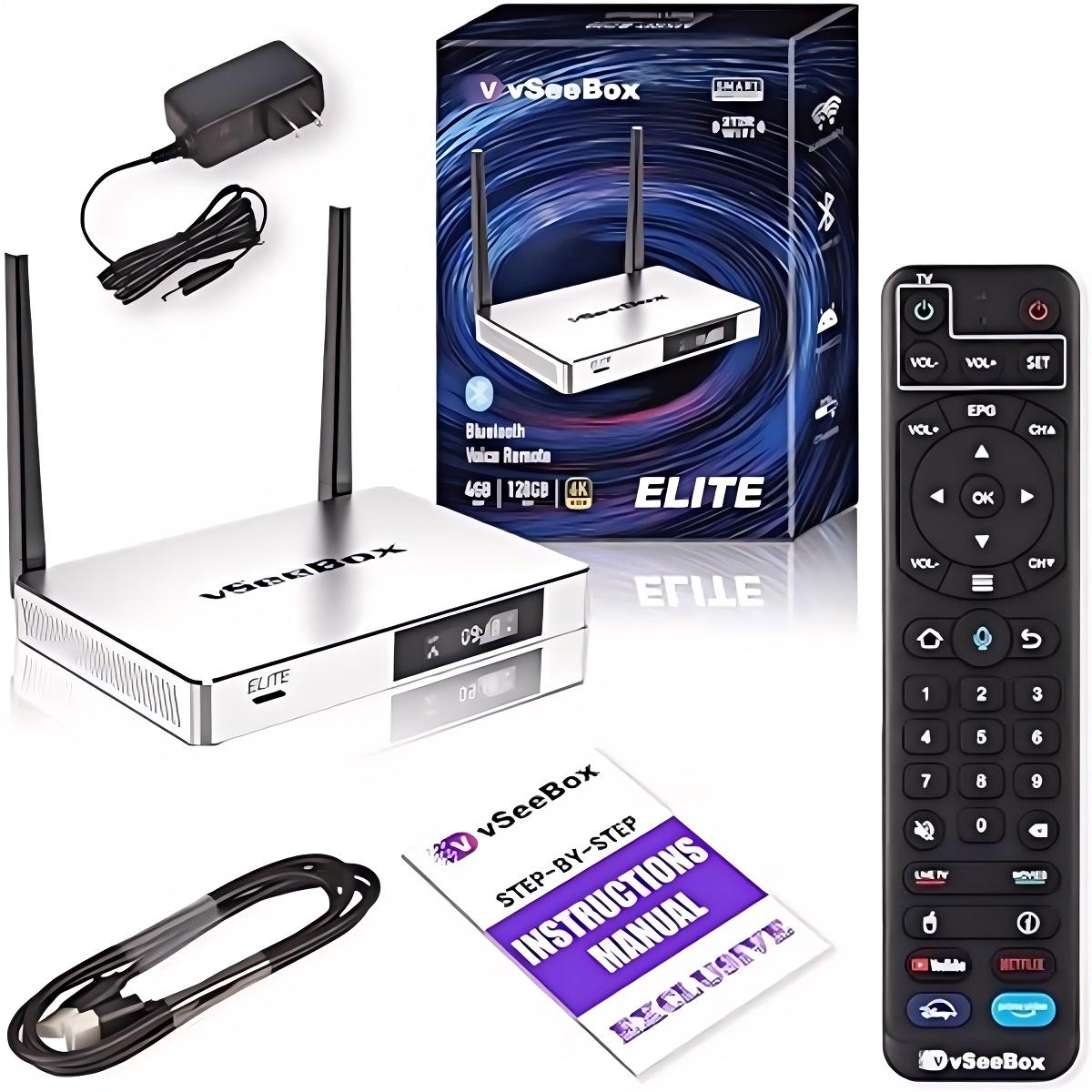
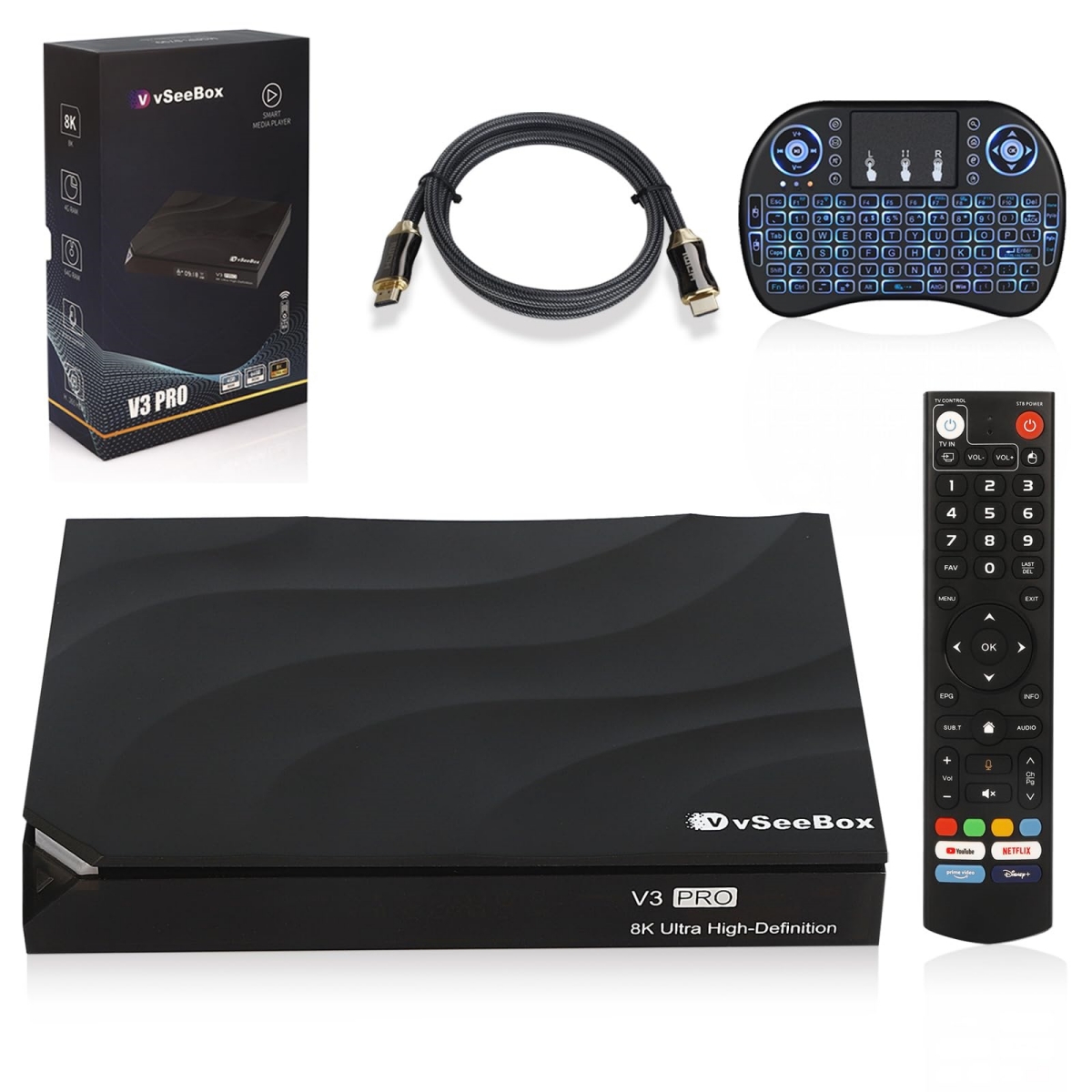
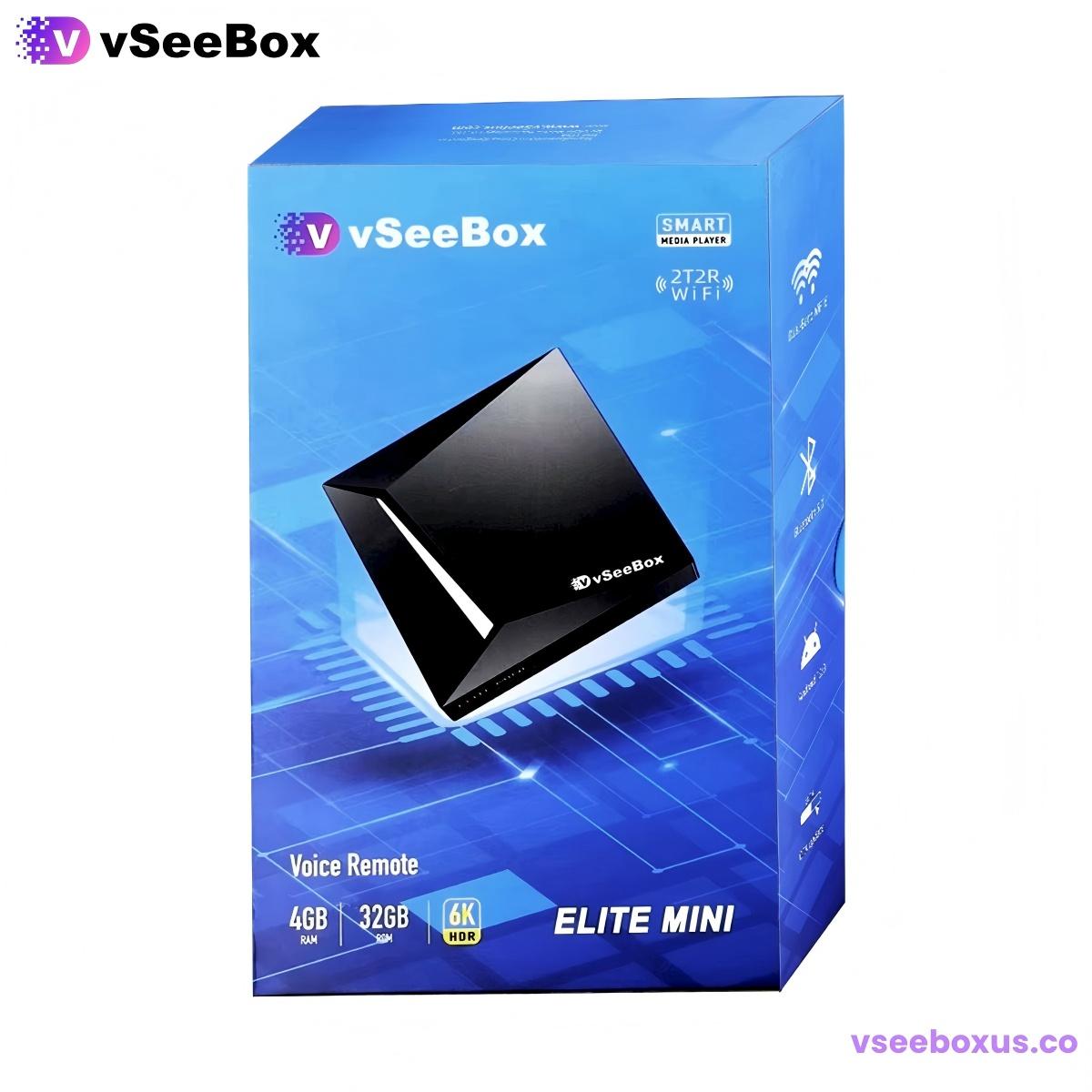
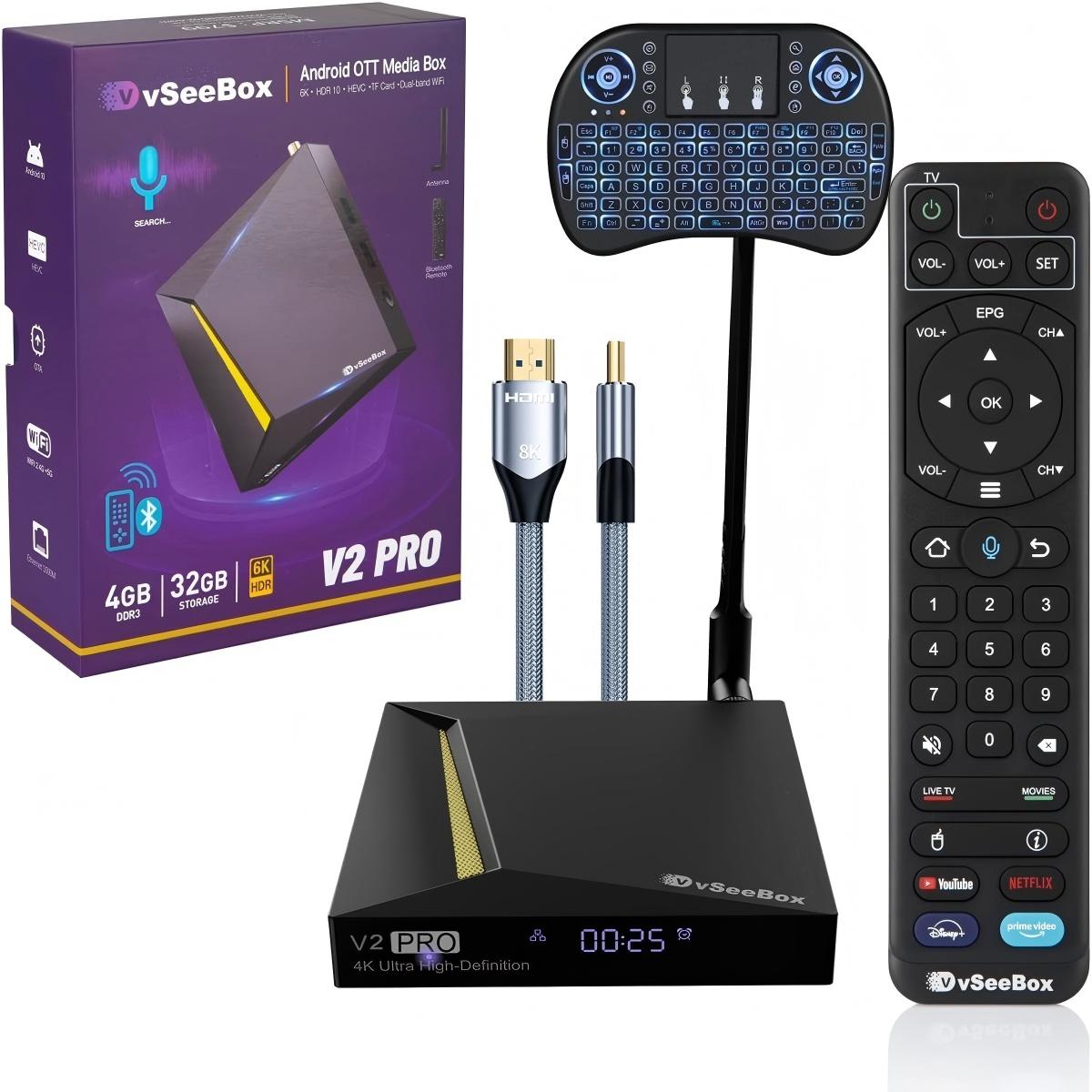
If you’ve noticed slower menu navigation, longer app load times, or more frequent buffering during video playback on your vSeeBox lately, you’re not alone. Like any Android-powered device, TV boxes can gradually lose speed over time as cached files build up, background apps accumulate, or network conditions change. The good news is that most performance issues are easy to resolve, and no technical expertise is required.
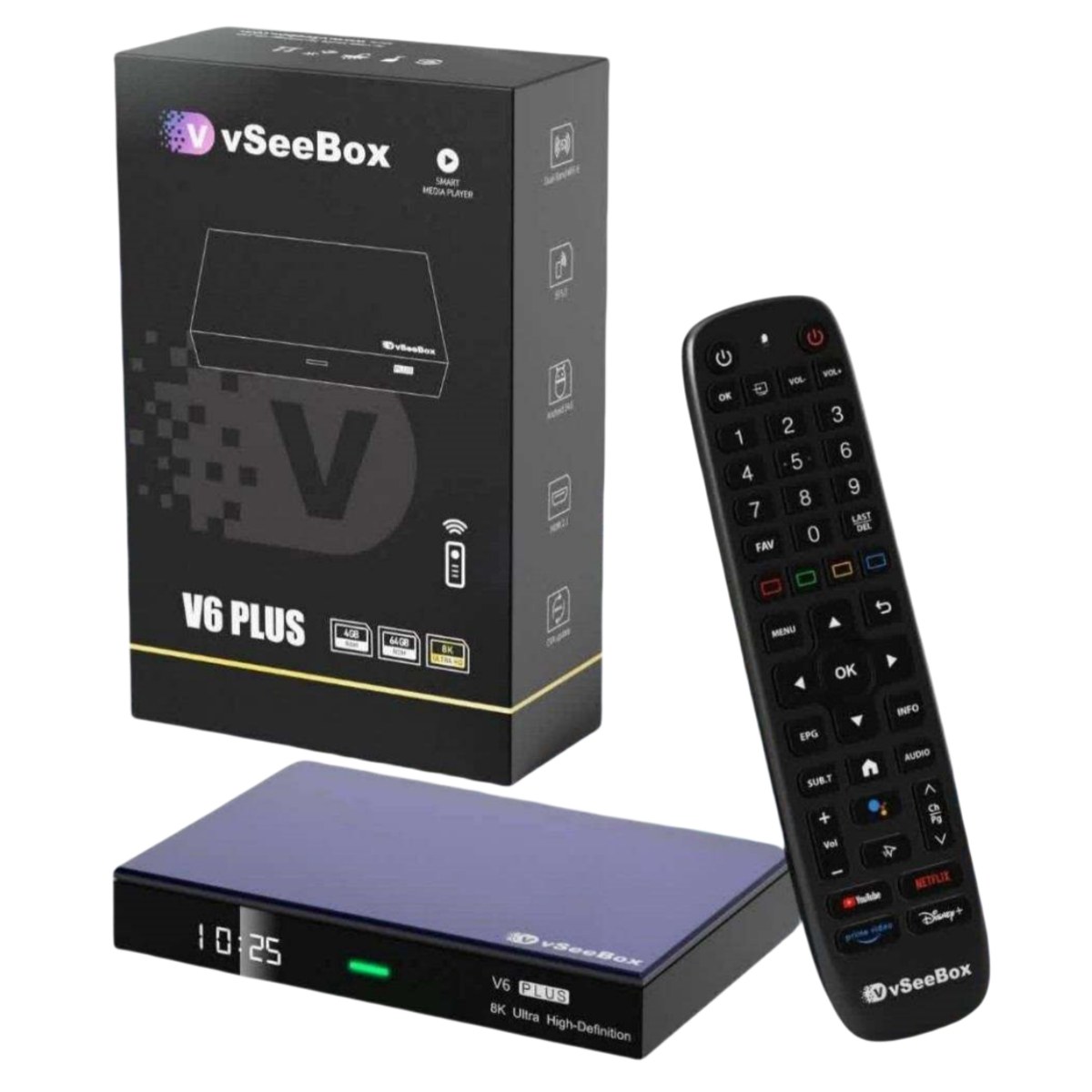
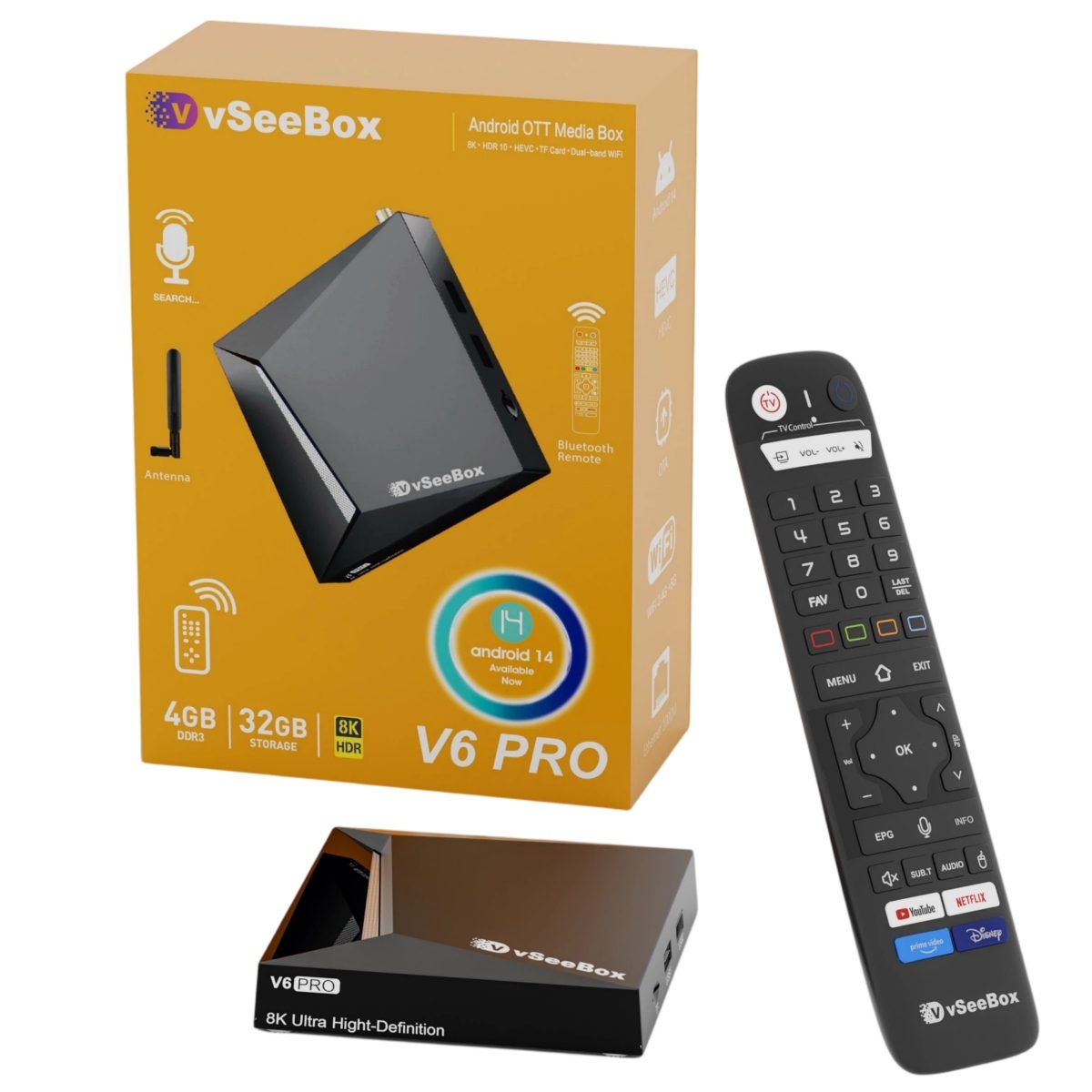
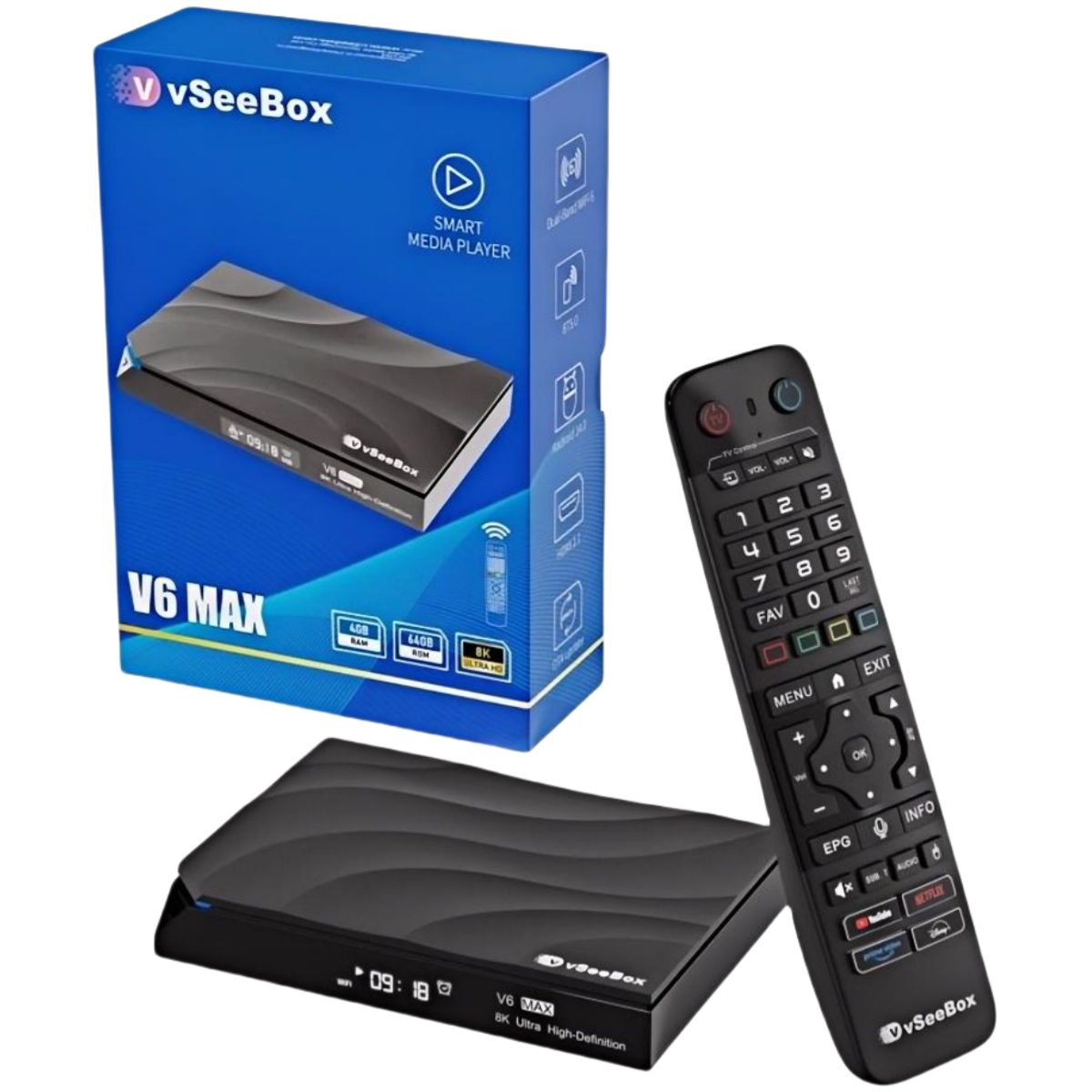
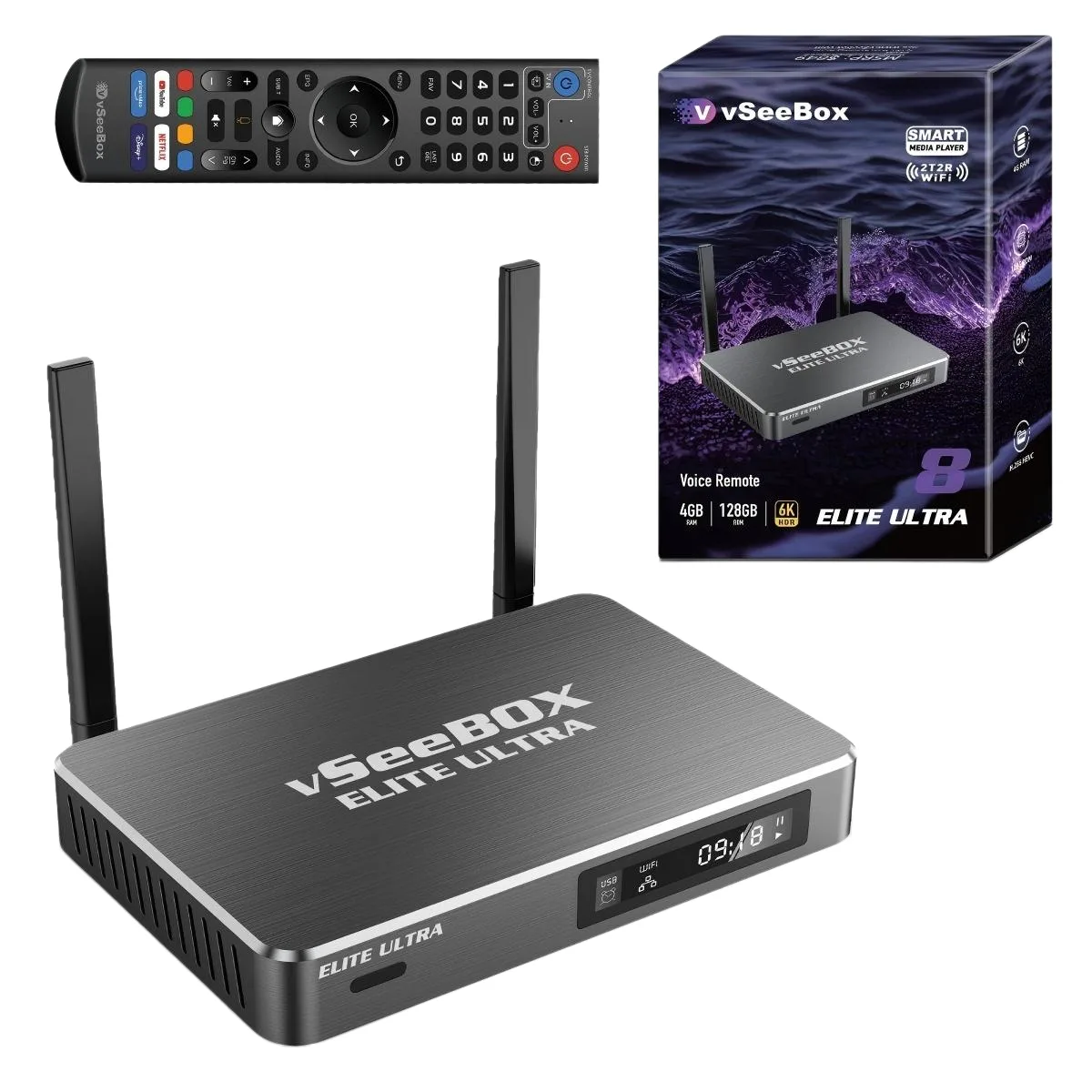
As an official vSeeBox distributor with 3+ years of experience supporting over 15,000 US customers, our technical team sees the same speed-related issues every week. In this guide, we’re sharing the 11 most effective fixes and maintenance habits we recommend to our customers to keep vSeeBox devices running like new. Every tip works for the V6 Plus, V6 Pro, V6 Max and Elite Ultra models.
Why Is Your vSeeBox Running Slow?
Before jumping into solutions, it helps to understand the most common causes of reduced performance:
- Unstable or insufficient internet speed (the #1 cause of playback buffering)
- Built-up app cache taking up internal storage space
- Too many apps running silently in the background
- Outdated system firmware or app versions
- Poor ventilation causing the processor to reduce speed to prevent overheating
- Low-quality HDMI cables limiting video output performance
Most of these issues take 2 minutes or less to fix. We’ll start with the changes that deliver the biggest performance gain first.
Part 1: Optimize Your Network Connection
Smooth 8K video playback relies heavily on consistent bandwidth. Even a fast internet plan can feel slow if your connection is unstable or interrupted by interference.
1. Switch to a Wired Gigabit Ethernet Connection
WiFi is convenient, but nothing matches the stability and consistent speed of a direct Ethernet cable. For 8K playback, a wired connection eliminates WiFi interference completely and delivers the steady bandwidth required for high-resolution video.
- Models like the vSeeBox V6 Plus and V6 Max include Gigabit Ethernet ports for the fastest possible wired performance.
- If your router is located far from your TV, a powerline Ethernet adapter will still deliver more reliable speeds than WiFi for high-resolution playback.
2. Improve Your WiFi 6 Signal Strength
If a wired connection isn’t an option, these simple adjustments can make a big difference in WiFi performance:
- Place your router in an open area, not inside a closed cabinet or behind large furniture.
- Connect your vSeeBox to the 5GHz WiFi band instead of 2.4GHz for faster speeds and less interference from nearby devices.
- Keep your vSeeBox within 30 feet of your router for the strongest WiFi 6 signal.
3. Reduce Network Congestion
Every phone, tablet, smart speaker and security camera connected to your network uses bandwidth. If multiple devices are downloading, updating or streaming at the same time, your vSeeBox may not get enough bandwidth for smooth 8K playback.
- Pause large downloads on other devices when watching high-resolution video.
- Disconnect old or unused devices from your WiFi network to free up bandwidth.
For more persistent network issues, check our complete vSeeBox troubleshooting guide for step-by-step solutions.
Part 2: System & Storage Optimization
Once your network is running well, optimizing the device itself will make menus feel snappier and apps load faster.
4. Clear App Cache Regularly
Apps store temporary files (called cache) to load content faster. Over weeks and months, this cache builds up and takes up valuable storage space, which can actually slow the entire system down over time.
- Clearing cache will not delete your apps, accounts or settings — it only removes temporary, disposable files.
- We recommend clearing cache for your most frequently used apps once every 30 days.
- You can find this option under Settings > Apps > Select your app > Clear cache.
5. Uninstall Apps You No Longer Use
Every app you install takes up storage space and may run background processes, even when you’re not actively using it. If you haven’t opened an app in 30+ days, uninstall it to free up resources.
- Freeing up internal storage makes a particularly noticeable difference on 32GB models like the V6 Pro.
- You can always reinstall apps later from the Google Play Store if you need them again.
6. Keep Firmware and Apps Updated
vSeeBox releases regular OTA (over-the-air) firmware updates to fix bugs, improve stability and optimize system performance. Running outdated firmware is one of the most common causes of slow, laggy system performance.
- Turn on automatic updates in your system settings so you don’t miss new releases.
- Update your installed apps regularly through the Google Play Store for the latest performance improvements and bug fixes.
For V6 series models running Android 14, these system updates unlock even better long-term performance and stability. Learn more about the advantages of Android 14 on vSeeBox devices in our full breakdown.
7. Limit Background Running Apps
With 4GB of RAM, vSeeBox devices handle multitasking very well — but too many apps running in the background will still reduce available memory and slow down foreground performance.
- Close apps completely when you’re done using them, instead of only pressing the home button.
- Use the built-in recent apps menu to clear unused apps once per day to free up RAM.
Part 3: Video Playback Quality Tuning
These small adjustments ensure you’re getting the best picture quality without putting unnecessary strain on the processor.
8. Match Output Resolution to Your TV
It’s tempting to set output to 8K just because the device supports it — but if your TV does not have a native 8K display, you’re wasting processing power for no visible improvement in picture quality.
- Set your output resolution to match your TV’s native resolution (usually 4K for most modern televisions).
- Only enable 8K output if you have an 8K TV and a consistently fast internet connection.
9. Use a Certified High-Speed HDMI 2.1 Cable
A cheap or old HDMI cable can cause frame drops, screen flickering, and even resolution limits, even if your device and TV are both high-end.
- For 8K@60fps playback, always use a certified HDMI 2.1 cable.
- Make sure the cable is securely plugged into both your TV and your vSeeBox device.
The vSeeBox V6 Plus supports full HDMI 2.1 output for the highest quality 8K playback on compatible displays.
Part 4: Long-Term Maintenance Habits
These simple regular habits will keep your vSeeBox running smoothly for years.
10. Restart Your Device Once a Week
This is the simplest fix of all, and it works consistently. A full restart clears temporary memory, closes stuck background processes, and resets your network connection.
- We recommend restarting your vSeeBox once every 7 days.
- You can do this through the system menu, or by unplugging the power cord for 10 seconds and plugging it back in.
11. Keep the Device Well-Ventilated
Like all electronics, vSeeBox devices generate heat during use. If they get too hot, the processor automatically reduces speed to prevent damage — this is called thermal throttling, and it’s a common cause of gradual slowdowns.
- Do not place your vSeeBox inside a closed cabinet or stack other electronic devices directly on top of it.
- Leave at least 2 inches of open space around the device for proper airflow.
- Gently clean dust from the exterior vents every few months to prevent overheating.
When Should You Upgrade Your vSeeBox?
If you’ve tried all 11 tips and still feel like your device can’t keep up with your needs, it may be time to upgrade to a newer model. Newer V6 series devices have faster processors, more storage, and improved WiFi 6 performance.
- For casual daily use, the V6 Pro offers solid performance at an accessible price point.
- For the best balance of speed, storage and value, the V6 Max and V6 Plus are our most popular recommendations.
- For maximum storage and premium features, the Elite Ultra is the flagship option.
Not sure which model is right for you? See our full V6 series comparison to find the best fit for your home setup.
Final Thoughts
Most vSeeBox slowdowns aren’t caused by faulty hardware — they come from easy-to-adjust network settings, built-up cache, or simple maintenance habits. By following these 11 tips, you can enjoy smoother playback, faster menus and a more reliable overall experience, no technical degree required.
All vSeeBox devices purchased from our store come with 1 year of official warranty and US-based technical support. When you shop with an authorized vSeeBox retailer, you receive genuine factory-sealed products and reliable support whenever you need it.
Frequently Asked Questions
Q: Why does my vSeeBox keep buffering during video playback?
A: Most buffering issues stem from slow or unstable internet, not the device itself. Start by switching to a wired Ethernet connection if possible, then optimize your WiFi placement. If problems continue, check our full troubleshooting guide for more solutions.
Q: Will clearing app cache delete my personal data or settings?
A: No. Clearing cache only removes temporary files used to load content faster. Your apps, accounts and system settings will remain completely unchanged.
Q: How often should I restart my vSeeBox?
A: We recommend a full restart once every 7 days. This clears temporary memory and keeps the system running smoothly for daily use.
Q: Can I add more storage to my vSeeBox?
A: Most vSeeBox models support USB drives for extra media storage. For app and system storage, we recommend uninstalling unused apps first to free up internal space.